
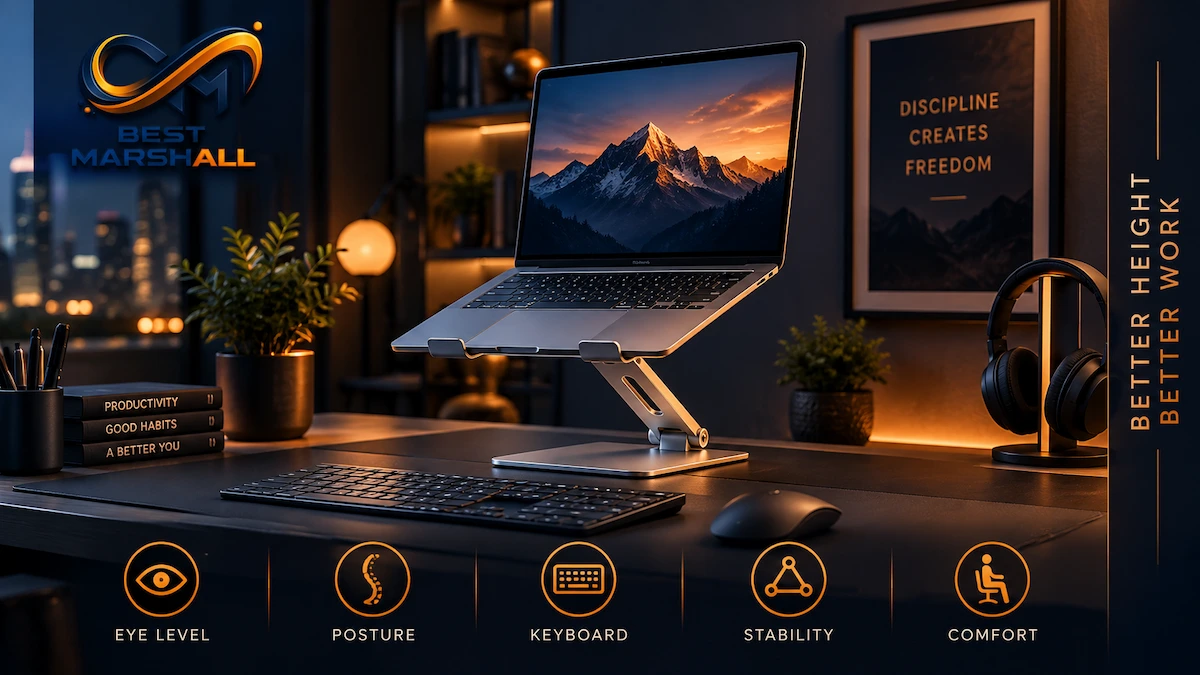
A laptop stand should be high enough to place the top of your laptop screen at approximately eye level or slightly below it while you sit or stand in a comfortable, neutral posture.
That sounds simple, but it does not translate into one universal number such as 4, 6, or 8 inches.
The correct height depends on your body dimensions, chair height, desk height, laptop screen size, screen angle, viewing distance, and whether you use an external keyboard and mouse.
For one person, a 5-inch lift may place the screen correctly. Another person using the same laptop and desk may need 8 inches or more. A fixed-height stand can therefore be ergonomically appropriate for one workstation and poorly matched to another.
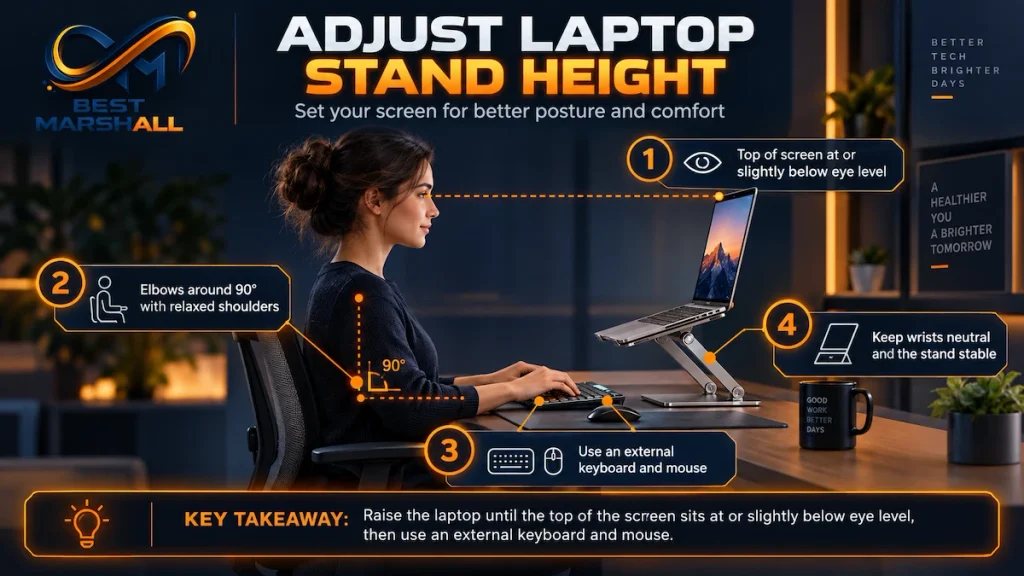
Professional workstation guidance from organizations such as OSHA and NIOSH focuses on the position of the screen relative to the user’s eyes, not on a prescribed laptop-stand height. OSHA recommends positioning a display directly in front of the user, with the top of the screen at or slightly below eye level and the center of the display generally about 15–20 degrees below the horizontal line of sight.
This guide explains how to determine the correct laptop stand height for your own desk, why screen distance matters, when an external keyboard becomes necessary, how standing desks change the calculation, and which common setup mistakes can undermine an otherwise good stand.
Quick Answer: How High Should a Laptop Stand Be?
Raise your laptop until the top of the display is approximately at eye level or slightly below it when your head and neck are in a neutral position. The center of the screen should generally fall about 15–20 degrees below your horizontal line of sight.
For prolonged desk work:
- keep the screen directly in front of you;
- position it roughly 20–40 inches from your eyes;
- keep your head and neck upright rather than bent forward;
- use an external keyboard and mouse once the laptop is elevated substantially;
- adjust the stand to your body rather than targeting a fixed number of inches.
The correct stand height is therefore the height that places the screen correctly, not whichever height specification looks largest on a product page.
Why There Is No Universal Laptop Stand Height
People often search for a simple answer such as:
“Should my laptop stand be 6 inches high?”
That approach ignores workstation geometry.
Imagine two people using identical 15-inch laptops:
- Person A is 5 feet 4 inches tall.
- Person B is 6 feet 3 inches tall.
If both use the same desk and chair, their seated eye heights may differ considerably.
The same fixed stand cannot automatically place the laptop display correctly for both people.
The required stand height also changes when you alter:
- chair height;
- sitting posture;
- desk height;
- laptop screen angle;
- screen size;
- viewing distance;
- standing vs. sitting position.
This is why OSHA emphasizes that there is no single correct workstation arrangement that fits everyone.
A better approach is to establish the correct body position first, then move the laptop screen to match it.
The Ergonomic Target: Where Should the Laptop Screen Be?
The screen, not the stand, is the real reference point.
OSHA’s computer-workstation guidance recommends that:
- the display be directly in front of the user;
- the top of the screen be at or slightly below eye level;
- the center of the display normally sit about 15–20 degrees below horizontal eye level;
- viewing distance generally fall between 20 and 40 inches.
NIOSH similarly recommends positioning a computer display approximately an arm’s length away, with the top at or below eye level.
Once you know the screen position you need, our guide on how to choose a laptop stand explains which stand features, adjustment range, stability, and compatibility factors matter most.
These guidelines explain why a laptop sitting flat on a conventional desk is often problematic for prolonged work.
The built-in keyboard may be in a reasonable typing position, but the screen is usually well below normal eye height.
If you look downward at that display for extended periods, the head and neck may remain in a flexed posture.
Raising the laptop improves screen position—but creates another problem.
The keyboard rises with it.
That is the fundamental ergonomic compromise built into every conventional laptop.
Why Laptops Create an Ergonomic Conflict
Desktop computers separate the display from the keyboard.
Laptops physically connect them.
That means the ideal screen position and ideal keyboard position cannot normally be achieved simultaneously with the laptop alone.
If the Laptop Is Flat on the Desk
The keyboard may be relatively accessible, but:
- the screen is low;
- the head may tilt downward;
- the upper body may lean forward;
- viewing distance may become too short.
If the Laptop Is Raised to Eye Level
The display position improves, but:
- the built-in keyboard becomes too high;
- wrists may bend;
- elbows may rise away from the body;
- shoulders may elevate;
- the touchpad becomes less practical.
This is why OSHA recommends a separate keyboard and pointing device when laptops are used as primary computers for prolonged typing.
A laptop stand works best when it converts the laptop into something functionally closer to a desktop display.
The Correct Laptop Stand Setup
A technically sound setup should be adjusted in a specific order.
Step 1: Set Your Chair Before Adjusting the Stand
Do not begin by raising the laptop.
First establish your seated position.
Your workstation should allow:
- back support;
- relaxed shoulders;
- elbows close to your torso;
- feet supported by the floor or a footrest;
- thighs comfortably supported;
- head and neck generally aligned with the torso.
If the chair changes height later, the ideal stand height changes with it.
Step 2: Position the External Keyboard and Mouse
For prolonged typing, place the keyboard where your shoulders can remain relaxed and your elbows stay near your sides.
NIOSH guidance recommends keeping the wrists close to a neutral, straight position and notes an elbow angle of approximately 90–120 degrees.
The mouse should remain near the keyboard rather than requiring repeated reaching.
Step 3: Sit Normally
Do not sit artificially straight just to adjust the stand.
Adopt the posture you can realistically maintain.
Then look directly forward without deliberately tilting your head.
Your horizontal line of sight becomes the reference for screen positioning.
Step 4: Place the Laptop at the Correct Distance
OSHA generally recommends approximately:
20–40 inches from the eyes to the screen
A useful starting point is approximately an arm’s length.
The exact distance depends on:
- screen size;
- text size;
- eyesight;
- resolution;
- application;
- workspace depth.
If you constantly lean forward to read text, the solution may be larger text or a different viewing distance rather than simply raising the stand.
Step 5: Raise the Laptop
Raise the laptop until:
the top edge of the active display is approximately level with your eyes or slightly below them.
Do not use the top of the laptop lid or webcam housing if it extends noticeably above the actual display area.
The important reference is the screen you view.
Step 6: Check the Center of the Display
Once the top is positioned correctly, the screen center should normally fall below straight-ahead eye level.
OSHA describes approximately 15–20 degrees below horizontal eye level as a normal viewing relationship.
This allows the eyes to look slightly downward without requiring substantial neck flexion.
Step 7: Adjust Screen Tilt
Laptop screen angle changes both:
- viewing comfort;
- effective screen height.
Tilt the panel so the display surface faces you naturally without forcing you to move your head.
Do not compensate for a poorly positioned stand by dramatically tilting the screen.
Height, distance, and tilt should work together.
How to Calculate the Laptop Stand Height You Need
You can estimate stand height using a simple measurement.
Basic Formula
Measure:
A = your seated eye height above the desk
Then measure:
B = vertical distance from the bottom of the laptop to the top of its active screen when opened at your normal viewing angle
Then:
Approximate stand lift = A − B
If you want the screen slightly below eye level, subtract a small additional amount.
Example
Suppose:
- your eyes are 18 inches above the desktop;
- the top of your laptop screen is 10 inches above its base.
Then:
18 − 10 = 8 inches
An approximately 8-inch lift would place the top of that particular laptop near your eye level.
If you prefer the top of the screen one inch below your eyes:
18 − 10 − 1 = 7 inches
So approximately 7 inches of lift may be appropriate.
This is only an example.
A different person, chair, desk, laptop, or screen angle produces a different result.
Why Laptop Size Changes the Required Stand Height
A 13-inch laptop and a 17-inch laptop do not position their screen tops at the same height when sitting on the same stand.
Larger laptop displays usually extend farther upward from the base.
As a result, a larger notebook may require less stand elevation to place its top edge at the same eye level.
This means a stand advertised as having a “maximum 8-inch height” does not create the same final screen height with every laptop.
When evaluating a stand, consider:
- stand elevation;
- laptop screen dimensions;
- screen hinge position;
- usable screen height;
- opening angle.
The final position of the display matters more than the stand’s advertised lift alone.
Fixed vs. Adjustable Laptop Stands
Fixed-Height Stands
A fixed stand can work very well when its geometry matches your workstation.
Advantages include:
- fewer moving parts;
- strong rigidity;
- simple setup;
- consistent screen position.
The disadvantage is obvious:
if the height is wrong, you cannot correct it without changing another workstation component.
Fixed stands make the most sense for:
- one primary user;
- one desk;
- one chair position;
- one laptop size.
Adjustable Laptop Stands
An adjustable stand provides greater flexibility.
This becomes particularly valuable when:
- several people use the desk;
- you alternate between sitting and standing;
- you change chairs;
- multiple laptop sizes are used;
- the stand travels between locations.
An adjustable stand should provide enough range to position the display correctly without sacrificing stability.
Maximum height alone should not determine quality.
A stand that reaches 20 inches but becomes unstable at the required position may be less useful than a rigid stand with a smaller adjustment range.
How High Should a Laptop Stand Be for Sitting?
For seated work, ignore the stand’s numerical height initially.
Set the chair, keyboard, and body posture first.
Then raise the laptop until:
- the top of the display is at or slightly below your eyes;
- the center is roughly 15–20 degrees below straight-ahead eye level;
- the screen is comfortable to read without leaning;
- the laptop remains directly in front of you.
Depending on the workstation, the resulting stand elevation could be several inches or considerably more.
There is no professional ergonomic rule requiring every seated laptop stand to have the same height.
How High Should a Laptop Stand Be for a Standing Desk?
The display relationship remains similar when standing.
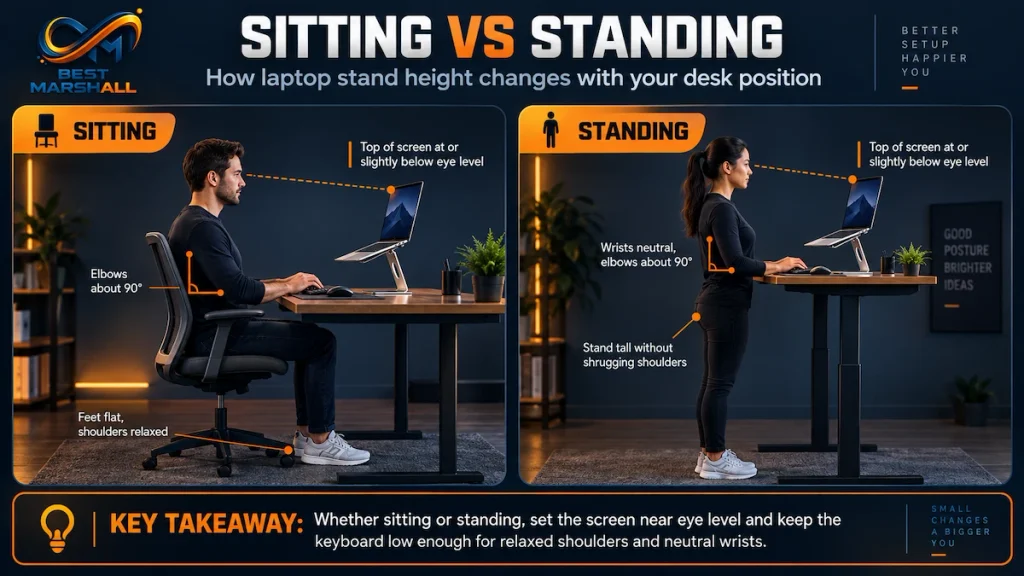
The difference is that the entire workstation moves upward.
For standing work:
- keep your head balanced over the torso;
- keep shoulders relaxed;
- position the keyboard near elbow height;
- maintain relatively neutral wrists;
- position the top of the display at or slightly below eye level;
- keep the display at a comfortable viewing distance.
Do not use an extremely tall laptop stand to compensate for a desk that places the keyboard far too low.
The keyboard and display are separate ergonomic problems.
A height-adjustable desk, external keyboard, and adjustable stand allow those elements to be positioned independently.
Why an External Keyboard Is Important
Once the laptop screen reaches appropriate viewing height, its keyboard is usually too high for sustained typing.
Consider the geometry.
If a stand lifts the computer 7 inches, the laptop keyboard also rises 7 inches.
Typing at that level may require you to:
- lift the shoulders;
- raise the elbows;
- bend the wrists;
- reach forward.
That defeats much of the ergonomic benefit gained by raising the display.
OSHA specifically recommends external keyboards and input devices for laptops used as primary computers.
For prolonged desk work, the preferred arrangement is therefore:
laptop on stand + separate keyboard + separate mouse
The laptop becomes the display and computer.
The external keyboard and mouse become the input system.
Can You Type Directly on a Laptop Stand?
Sometimes—but it depends on height, angle, duration, and task.
Low Stands
A small incline or low elevation may still allow occasional direct typing.
That can be practical for:
- short emails;
- temporary work;
- presentations;
- quick adjustments.
High Stands
Once the screen approaches eye level, direct typing becomes ergonomically difficult.
The hands would have to operate near the height of the elevated laptop rather than around elbow level.
For prolonged typing, this is generally not a good trade-off.
Travel Use
When traveling, perfect workstation geometry may not be possible.
NIOSH notes that laptop users working outside conventional offices should change posture regularly and minimize long periods in awkward laptop positions.
A lightweight travel stand plus compact keyboard and mouse can provide a much better compromise.
How Far Should the Laptop Screen Be From Your Eyes?
OSHA generally recommends a viewing distance between:
20 and 40 inches
Mayo Clinic similarly describes approximately an arm’s length as a practical starting point.
The correct distance depends partly on display size.
Smaller Screens
A small laptop may need to sit somewhat closer so text remains readable.
Instead of leaning forward, consider:
- increasing operating-system scaling;
- enlarging text;
- zooming applications;
- adjusting browser magnification.
Larger Screens
Large displays can often sit farther away while remaining readable.
Do not place the laptop too far away merely because the stand permits it.
The correct setup allows you to read comfortably while keeping your back supported and head upright.
Why Viewing Distance Changes the Ideal Height
Screen distance affects viewing angle.
If you move a screen much farther away while keeping it at the same height, the angle from your eyes to the screen changes.
That is why workstation adjustment should not treat:
- height;
- distance;
- tilt;
as independent variables.
They form a geometric system.
Adjust one, then recheck the others.
What About Eye Level and the Webcam?
The ergonomically correct display position often improves webcam positioning as a side effect.
A laptop camera mounted above the display tends to move closer to eye height when the screen is raised.
That can produce a more natural video-call angle than a laptop resting flat on a desk.
However, webcam aesthetics should not override viewing comfort.
If the laptop must be positioned incorrectly just to create a flattering camera angle, a separate webcam is the more flexible solution.
Users With Bifocals or Progressive Lenses May Need a Lower Screen
Eye-level advice is not identical for everyone.
OSHA specifically notes that users wearing bifocal or multifocal lenses may tilt their heads backward if a screen is positioned too high.
Mayo Clinic similarly recommends lowering the monitor for bifocal users.
If you use progressive or bifocal lenses, you may need:
- a lower display position;
- additional screen tilt;
- a different viewing distance;
- task-specific computer glasses.
The correct target is a position where you can read the display without repeatedly tilting your head backward.
This is another reason fixed numerical stand heights are unreliable.
What If the Laptop Stand Is Too Low?
If the display remains too low, users may compensate by:
- bending the neck downward;
- rounding the upper back;
- leaning forward;
- moving closer to the screen.
OSHA identifies prolonged awkward head, neck, and torso positions as workstation risk factors.
The solution is not necessarily to buy the tallest stand available.
First determine whether:
- the chair is too low;
- the desk is too high;
- the viewing distance is inappropriate;
- the stand lacks enough adjustment;
- text is too small.
Workstation ergonomics should be corrected as a system.
What If the Laptop Stand Is Too High?
Higher is not automatically more ergonomic.
If the display is above eye level, users may begin tilting the head backward.
OSHA specifically identifies monitors positioned too high as a potential source of neck and shoulder fatigue.
A common mistake is therefore raising the laptop until the center of the display reaches eye level.
For a typical screen, that may place the top far above the eyes.
The better starting reference is:
top of the display at or slightly below eye level
not:
center of the display at eye level
Laptop Stand Height for Dual-Monitor Setups
If you use the laptop beside an external monitor, setup depends on which display is primary.
Laptop Is the Primary Display
Position the laptop directly in front of you.
The external monitor should sit beside it.
External Monitor Is the Primary Display
Position the external monitor directly in front of you.
The laptop can sit to one side.
If you look at the laptop frequently, aligning the upper areas of the two displays can reduce repeated vertical head movement.
Equal Use
If both displays receive similar use, place them close together and as symmetrically as practical.
OSHA recommends positioning multiple monitors so head and neck movement is minimized.
The laptop stand therefore becomes not only a height adjustment tool but also a way of aligning screens.
Does a Laptop Stand Improve Cooling?
It can improve air clearance, but stand height alone does not guarantee lower temperatures.
Laptop cooling depends on:
- air-intake location;
- exhaust location;
- fan design;
- processor load;
- ambient temperature;
- internal cooling system;
- dust buildup.
An open stand can prevent a desk surface from obstructing bottom vents.
That is particularly relevant for laptops that intake air through the underside.
However, raising a laptop 10 inches instead of 5 inches does not necessarily improve cooling further once the vents already have adequate unrestricted airflow.
For thermal purposes, vent clearance matters more than maximum elevation.
Professional Evaluation Criteria for Laptop Stand Height
Height Adjustment Range
An adjustable stand should reach your required screen position with adjustment remaining on either side if possible.
A stand whose maximum height only barely reaches the correct level provides little flexibility.
Stability
Elevation increases leverage.
The higher a device is positioned, the more movement at the base can translate into visible screen motion.
Consider:
- base width;
- hinge stiffness;
- material rigidity;
- laptop weight rating;
- center of gravity.
Laptop Compatibility
Check:
- laptop size;
- weight;
- chassis thickness;
- front retaining lip;
- ventilation location.
A stand can have the correct height but still be unsuitable if it obstructs vents or does not securely support the computer.
Viewing Distance
The stand should allow the laptop to remain at least approximately 20 inches from your eyes when appropriate for the display and task.
Some deep stands consume significant desk depth.
Keyboard Clearance
If you use an external keyboard, ensure there is enough desk area in front of the laptop.
Some stands also allow the keyboard to be stored underneath when not in use.
Tilt Control
Height without appropriate tilt can make the screen difficult to view.
The stand and laptop hinge should allow the display to face the user without extreme screen angles.
Standards, Guidelines, and Important Ergonomic Precautions
There is no federal requirement stating that a laptop stand must be a specific number of inches high.
OSHA’s Computer Workstations eTool provides ergonomic guidance rather than establishing one mandatory stand-height standard.
The important workstation targets include:
- display directly in front of the user;
- top of the display at or below eye level;
- center typically about 15–20 degrees below horizontal eye level;
- viewing distance generally around 20–40 inches;
- shoulders relaxed;
- elbows close to the body;
- wrists aligned with the forearms;
- separate keyboard and pointing device for prolonged laptop use;
- adequate support for the feet and lower back.
These principles should be treated as a coordinated system rather than isolated specifications.
Common Beginner Mistakes With Laptop Stand Height
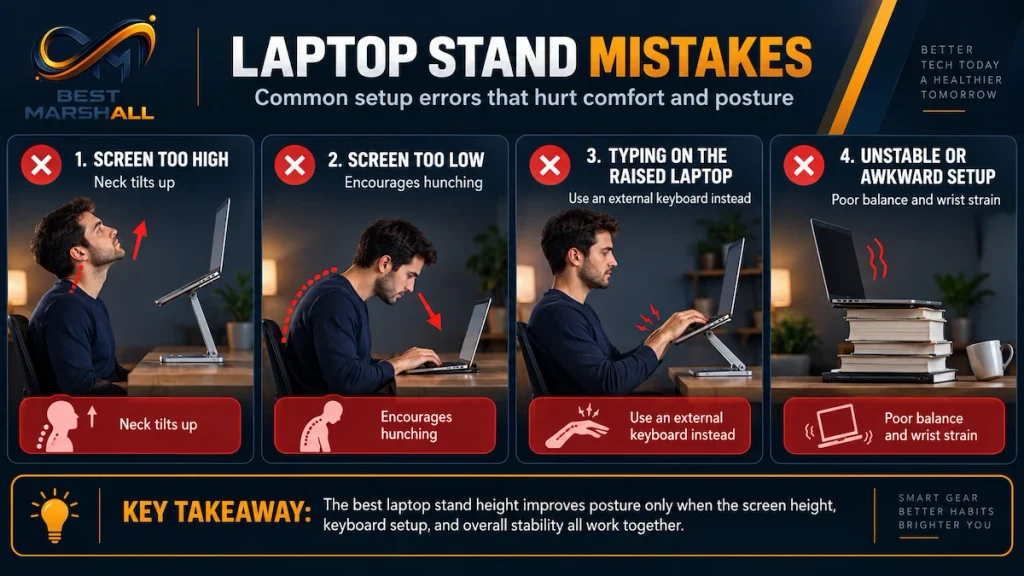
Mistake 1: Looking for One Universal Height
There is no universal 6-inch or 8-inch rule.
Measure your workstation.
Mistake 2: Positioning the Center of the Screen at Eye Level
This often raises the display too high.
The top of the screen is normally the better reference.
Mistake 3: Raising the Laptop but Continuing to Type on It for Hours
The screen position improves while the keyboard position gets worse.
Use external input devices for prolonged elevated use.
Mistake 4: Adjusting the Stand Before the Chair
Chair height changes eye height.
Set the body position first.
Mistake 5: Sitting Too Close to the Screen
A tall stand does not compensate for inadequate viewing distance.
Aim for a readable screen while remaining roughly 20–40 inches away.
Mistake 6: Buying the Tallest Stand Available
Maximum height is not the objective.
Correct usable height is.
Mistake 7: Ignoring Stability at Maximum Extension
A stand can be rigid when low and much less stable when fully extended.
Consider where you will actually use it.
Mistake 8: Ignoring Laptop Screen Size
A 17-inch laptop already places its upper display higher than many 13-inch models.
The required stand lift can therefore differ.
Mistake 9: Raising the Screen to Fix a Keyboard Problem
Display and keyboard positions should be adjusted independently whenever possible.
Mistake 10: Assuming Ergonomics Means Holding One Perfect Posture All Day
OSHA explicitly notes that there is no single correct posture for everyone.
Movement, position changes, and breaks remain important.
How to Choose the Right Laptop Stand: Technical Checklist
Before buying a stand, check the following.
Measure Your Required Height
- Sit normally.
- Measure eye height above the desk.
- Measure the laptop screen height.
- Estimate the required lift.
- Confirm the stand’s usable range covers it.
Check Screen Distance
- Is your desk deep enough for approximately 20–40 inches of viewing distance?
- Will the stand push the laptop too close?
Check External Peripherals
For prolonged work, plan for:
- external keyboard;
- mouse or trackball;
- sufficient desk space.
Verify Laptop Compatibility
Check:
- screen size;
- laptop weight;
- chassis thickness;
- vent location;
- stand weight rating.
Evaluate Stability
Look for:
- wide base;
- rigid construction;
- secure hinges;
- anti-slip pads;
- adequate support at your required height.
Consider Portability
If the stand travels with you, balance:
- adjustment range;
- folded dimensions;
- weight;
- setup time.
Consider Sitting and Standing Use
If you alternate frequently, choose a stand with enough range for both positions or pair it with a height-adjustable desk.
Once you know the height range and features your setup requires, compare our picks for the best laptop stands in 2026 to find models that match those needs.
Laptop Stand Height by User Type
Beginner User
Focus on three things:
- top of screen near eye level;
- screen approximately an arm’s length away;
- external keyboard and mouse for longer sessions.
Do not overcomplicate the setup.
Intermediate User
Fine-tune:
- screen center angle;
- chair height;
- keyboard position;
- laptop tilt;
- dual-monitor alignment;
- glare;
- text scaling.
Advanced User
Evaluate the workstation geometrically.
Measure:
- seated eye height;
- desk height;
- keyboard height;
- screen dimensions;
- stand elevation;
- viewing distance;
- sitting and standing configurations.
The goal is repeatable workstation fit rather than relying on general stand-height recommendations.
Technical FAQ
How many inches high should a laptop stand be?
There is no universal height. Raise the stand until the top of your laptop display is approximately at or slightly below eye level while you maintain a comfortable neutral posture.
Should the top or center of my laptop screen be at eye level?
The top of the screen is generally the better reference. OSHA recommends the top at or slightly below eye level, with the center usually about 15–20 degrees below horizontal eye level.
Is a 6-inch laptop stand high enough?
It may be, but only if 6 inches places your particular laptop screen correctly for your body and workstation. Measure rather than assuming.
Is an 8-inch laptop stand too high?
Not necessarily. For a tall user, low desk, or small laptop screen, 8 inches may be appropriate. For another user, it may place the screen above eye level.
How far should my laptop be from my eyes?
OSHA generally recommends a viewing distance of approximately 20–40 inches. About an arm’s length is a useful starting point.
Should I look straight ahead at my laptop?
Your head should generally face forward, but your eyes naturally look slightly downward toward the center of the display. OSHA describes approximately a 15–20-degree downward viewing angle to the center as typical.
Is it bad if my laptop screen is above eye level?
A screen positioned too high can encourage backward head tilt. Lower it until the top is around eye level or slightly below unless a specific visual requirement calls for a different position.
Should I use an external keyboard with a laptop stand?
Yes for prolonged typing when the stand substantially elevates the laptop. OSHA recommends separate keyboard and pointing devices for laptops used as primary computers.
Can I type directly on an elevated laptop?
For short periods or low elevation, possibly. Once the display is raised toward eye level, direct typing usually places the hands and arms too high for a comfortable prolonged setup.
How high should a laptop stand be for someone who is 6 feet tall?
Height alone is not enough to calculate it. Seated eye height, chair height, desk height, laptop dimensions, posture, and screen angle all affect the answer.
How high should a laptop stand be for a standing desk?
Use the same screen principle: top of the display at or slightly below eye level. Then position the external keyboard near elbow height with relaxed shoulders and neutral wrists.
Should the laptop be directly in front of me?
Yes when it is your primary display. Repeatedly turning your head toward an off-center primary screen can create unnecessary neck rotation.
Should I tilt the laptop screen backward?
A moderate tilt may help the display face your eyes correctly, but tilt should complement—not replace—proper height and distance.
Does a laptop stand help neck posture?
A properly adjusted stand can help reduce the need to look downward at a low laptop screen. The benefit depends on the rest of the workstation, including chair, keyboard, mouse, viewing distance, and work habits.
Can a laptop stand prevent neck or back pain?
A stand can improve workstation positioning, but it cannot guarantee prevention or treatment of pain. Musculoskeletal symptoms can have multiple causes. Persistent symptoms should not be managed solely by changing desk accessories.
Do bifocal users need a lower laptop screen?
Often, yes. OSHA and Mayo Clinic guidance note that bifocal or multifocal users may need the display lower to avoid tilting the head backward when viewing through the lower portion of the lenses.
Does laptop stand height affect cooling?
Only indirectly. Elevation can improve airflow if it prevents bottom vents from being obstructed, but additional height does not automatically create better cooling once adequate ventilation is available.
Is a fixed or adjustable laptop stand better?
An adjustable model is more flexible for multiple users, devices, or sitting/standing positions. A fixed stand can provide excellent stability when its height happens to match the workstation correctly.
Should my laptop and external monitor be the same height?
If both are used frequently, similar vertical positioning can reduce repeated head movement. If one is clearly primary, position that display directly in front of you and optimize its height first.
Expert Conclusion: How High Should Your Laptop Stand Actually Be?
The correct laptop stand height is not a fixed measurement.
It is the elevation required to place your display correctly within your specific workstation.
For most users, the practical target is straightforward:
- top of the screen at or slightly below eye level;
- center of the display approximately 15–20 degrees below horizontal eye level;
- screen directly in front;
- viewing distance generally around 20–40 inches;
- head and neck balanced with the torso;
- shoulders relaxed;
- external keyboard and mouse positioned around a comfortable elbow-height working zone.
Once these conditions are met, the actual stand height may be 4 inches, 6 inches, 8 inches, or another value entirely.
That is why choosing a laptop stand solely by its advertised maximum height is the wrong approach.
An adjustable stand offers the greatest flexibility, particularly when multiple people use the desk, when laptop sizes change, or when the workstation alternates between seated and standing use.
A fixed-height model can work just as well when its geometry already matches the user.
The most important principle is simple:
Adjust the laptop to your body—not your body to the laptop stand.

2 thoughts on “How High Should a Laptop Stand Be?”