
Modern laptops keep getting thinner, but that often means fewer ports. A laptop with two USB-C ports may need to connect to a monitor, keyboard, mouse, external SSD, Ethernet network, SD card, charger, and other desk accessories at the same time.
That is where USB-C hubs become useful.
A well-chosen hub can turn one laptop port into a practical desk-setup connection point. But products that look almost identical can have dramatically different capabilities. One may support a 4K monitor at 60Hz and 100W charging, while another with the same USB-C connector may provide slower data, lower display performance, or no video output at all.
The most important rule is simple:
USB-C describes the connector—not everything the connection can do.
Before buying, you need to understand your laptop’s capabilities, the hub’s bandwidth, display support, Power Delivery, port speeds, and the peripherals you actually plan to connect.
For this guide, Best Marshall analyzed current USB standards, manufacturer documentation, platform requirements, independent evaluations, and recurring usability patterns to explain how to choose the right USB-C hub for a modern desk setup.
What Is a USB-C Hub?
A USB-C hub expands one USB-C port into several additional connections.
Depending on the model, those connections may include:
- USB-A ports;
- USB-C data ports;
- HDMI;
- DisplayPort;
- Ethernet;
- SD and microSD card readers;
- 3.5mm audio;
- USB-C Power Delivery input.
The basic idea is convenience.
Instead of connecting several cables individually every time you sit down at your desk, one USB-C connection can potentially provide access to your peripherals, monitor, network, storage, and laptop charging.
This is particularly useful for:
- laptop-based desk setups;
- home offices;
- hybrid workers;
- photographers;
- creators;
- students;
- travelers;
- users of thin-and-light laptops with limited ports.
Retail products are commonly called USB-C hubs even when they provide video and charging functions that technically move them closer to what standards organizations may classify as docking devices.
For buyers, the more useful distinction is between a portable hub and a full docking station.
A compact USB-C hub usually prioritizes portability and essential ports. A dock is generally larger, more powerful, and better suited to permanent multi-monitor desktop setups.
How Does a USB-C Hub Work?
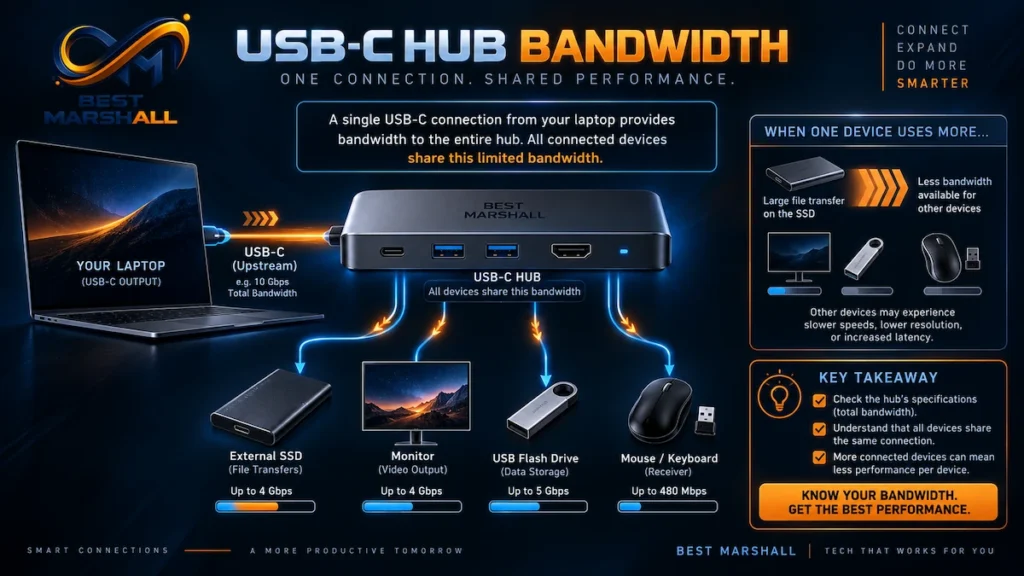
A hub takes the capabilities available through your laptop’s USB-C connection and distributes them among several ports.
That creates one of the most misunderstood aspects of USB-C hubs:
the hub cannot create capabilities that the computer does not provide.
If your laptop’s USB-C port does not support video output, connecting a standard HDMI-equipped hub will not automatically add video support.
If the host connection provides limited bandwidth, adding more high-speed ports does not magically increase that bandwidth.
The same principle applies to charging.
A hub may advertise 100W or 140W Power Delivery input, but your laptop, charger, cable, and hub must all support the required power level. The hub may also reserve some power for its own electronics and attached accessories.
Think of the USB-C connection as a highway. Adding more exits does not make the highway wider.
USB-C Hub Specifications That Actually Matter
| Feature | What to Check |
|---|---|
| Host connection | USB 5Gbps, 10Gbps, 20Gbps, USB4, or Thunderbolt |
| USB-A ports | Port count and individual data speeds |
| USB-C data ports | Confirm they support data, not charging only |
| Display output | HDMI, DisplayPort, or USB-C video |
| Maximum resolution | Check resolution and refresh rate together |
| Power Delivery | Maximum laptop charging output |
| Ethernet | Gigabit or faster if needed |
| Card reader | SD, microSD, UHS-I, or faster standards |
| Audio | 3.5mm input/output if required |
| Multiple displays | Verify operating-system and laptop support |
| Cable | Captive or detachable; check length |
| Power supply | Often sold separately on portable hubs |
| Certification | Look for reputable compliance and safety information |
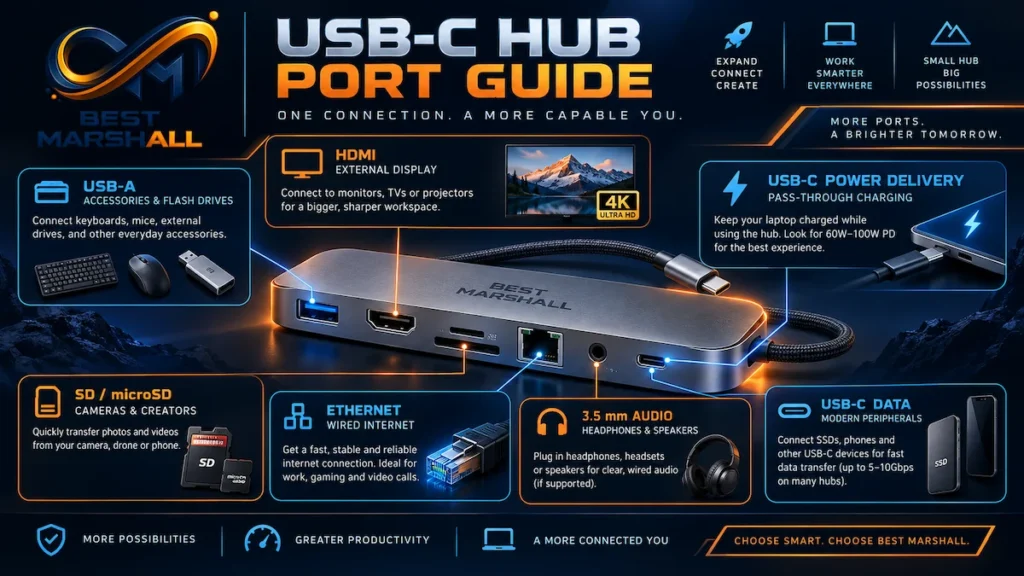
The practical lesson is to avoid judging a hub by the number of ports alone.
A “12-in-1” hub is not automatically better than a carefully designed 7-in-1 model.
USB-C Does Not Tell You the Data Speed
USB-C connectors can support very different data rates.
Depending on the implementation, current USB connections may operate at speeds such as:
- 5Gbps;
- 10Gbps;
- 20Gbps;
- 40Gbps;
- 80Gbps.
USB4 can provide substantially more bandwidth than basic USB connections, while Thunderbolt products impose additional capability requirements.
Thunderbolt 4 operates around a 40Gbps platform requirement, while Thunderbolt 5 increases bidirectional bandwidth to 80Gbps and can use additional bandwidth for demanding display workloads.
Most ordinary office users do not need Thunderbolt 5.
But bandwidth becomes much more important when combining:
- high-resolution monitors;
- high-refresh-rate displays;
- fast external SSDs;
- capture devices;
- 2.5Gb Ethernet;
- several high-speed peripherals.
For a basic keyboard, mouse, webcam, and office monitor, a conventional USB-C hub can be entirely sufficient.
For professional video production or multiple high-resolution displays, USB4 or Thunderbolt may make more sense.
How to Choose Display Support
Display specifications are one of the easiest places to make a buying mistake.
Do not look only for “4K.”
Instead, look for:
resolution + refresh rate
For example:
- 4K at 30Hz;
- 4K at 60Hz;
- 4K at 120Hz.
These are very different experiences.
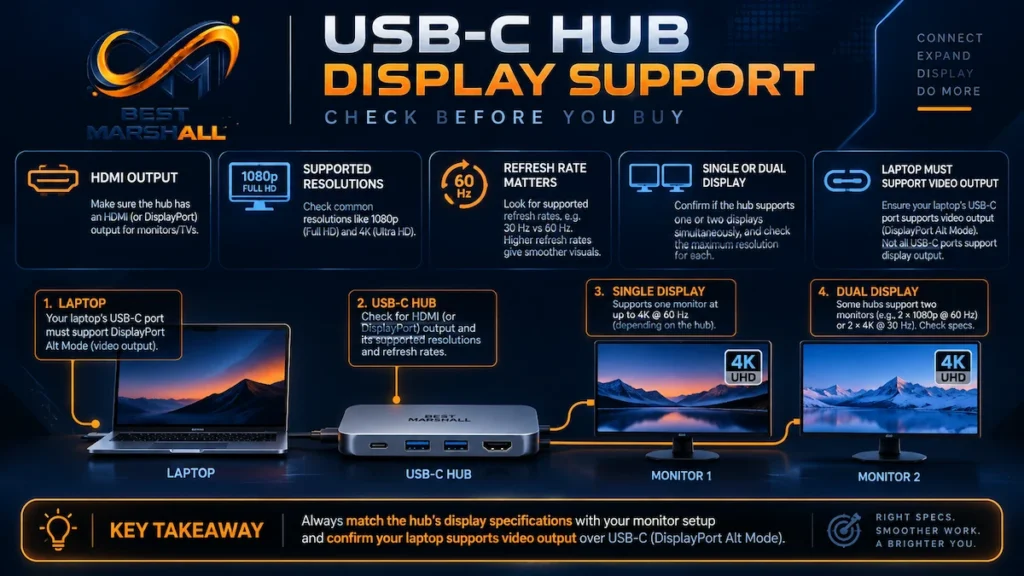
For normal desktop productivity, 4K at 60Hz is generally a much better baseline than 4K at 30Hz because mouse movement, scrolling, and animations appear noticeably smoother.
Higher refresh rates can matter for gaming or specialized creative workflows.
Your Laptop Must Support Video Over USB-C
Many hubs use DisplayPort Alt Mode to carry video through the USB-C connection.
Your host computer must support the appropriate display capability.
USB-C ports can look identical while offering different functions, so check your laptop manufacturer’s specifications.
Multiple Monitors Require Extra Attention
A hub advertising two HDMI ports does not necessarily mean every laptop can extend its desktop across two independent external displays.
The maximum number of displays depends on:
- laptop hardware;
- GPU capabilities;
- operating system;
- USB-C or Thunderbolt implementation;
- hub technology;
- resolution;
- refresh rate.
This is particularly important for Mac buyers.
Apple’s supported number of external displays varies by Mac model and chip. Connecting a hub does not automatically increase the computer’s maximum display capability.
Some specialized docks use technologies such as DisplayLink to provide additional display options, but these may require software and introduce different trade-offs.
Before buying a multi-monitor hub, check the exact laptop model—not just whether it has USB-C.
Power Delivery: Do Not Confuse Input With Laptop Charging
USB Power Delivery can now support very high power levels, with the current USB PD specification extending as high as 240W in compatible implementations.
That does not mean a typical USB-C hub will deliver 240W to your laptop.
A listing may say something like:
100W PD
but part of that power can be reserved for the hub itself.
The laptop may therefore receive less than the advertised input figure.
When comparing hubs, look specifically for:
maximum power delivered to the host laptop
rather than only the maximum charger input.
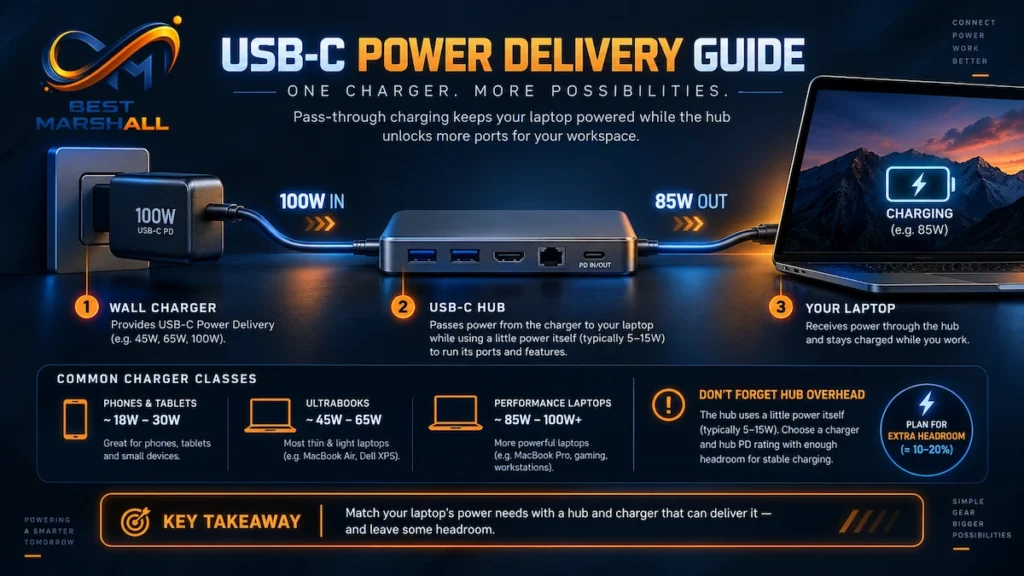
Also check your laptop’s normal charger.
If a workstation laptop typically uses significantly more power than the hub can deliver, pass-through charging may be inadequate under heavy workloads.
USB-A and USB-C Data Ports
Port count can be misleading.
A hub may include several USB-A connectors but give them different speeds.
For basic peripherals such as:
- keyboards;
- mice;
- wireless receivers;
- printers;
extremely high bandwidth is unnecessary.
For:
- external SSDs;
- high-speed flash drives;
- video capture devices;
- large photo transfers;
10Gbps or faster connections can be much more valuable.
The same warning applies to downstream USB-C ports.
Some USB-C ports on hubs are:
- data only;
- charging only;
- Power Delivery input only.
Do not assume every USB-C connector provides full-featured USB-C functionality.
Ethernet: Gigabit vs Faster Networking
If your desk setup relies on stable wired networking, an Ethernet port can eliminate another adapter.
Gigabit Ethernet is sufficient for many home and office networks.
A 2.5Gb Ethernet port may make sense if your:
- router supports multi-gig networking;
- internet connection exceeds 1Gbps;
- NAS supports faster networking;
- workflow involves large local file transfers.
Buying a 2.5Gb hub offers little benefit if the rest of the network remains limited to 1Gbps.
SD and microSD Card Readers
Card readers are especially useful for photographers, videographers, and creators.
But simply having an SD slot does not guarantee high transfer speed.
Check the supported standard.
A faster camera card may be bottlenecked by a slower reader inside the hub.
For occasional document or photo transfers, this may not matter.
For users regularly transferring tens or hundreds of gigabytes of footage, card-reader performance can significantly affect workflow time.
How to Use a USB-C Hub
Setup is generally straightforward:
- Check that your laptop’s USB-C port supports the functions you need.
- Connect your charger to the hub’s Power Delivery input if pass-through charging is required.
- Connect the hub to the laptop.
- Attach the monitor, Ethernet cable, storage devices, and peripherals.
- Configure display resolution and refresh rate in the operating system.
- Verify that the laptop is charging at an appropriate rate.
- Test external storage and network performance before relying on the setup for important work.
For a permanent desk setup, it is useful to connect the devices that remain on the desk first and use the hub as a single connection point for the laptop.
Main Benefits of a USB-C Hub
Fewer cables connected directly to the laptop: A single connection can replace several separate adapters.
More ports: Particularly useful on ultrabooks with limited connectivity.
Cleaner desk setups: Peripherals can remain connected to the hub rather than constantly moving with the laptop.
Fast workstation transitions: Hybrid workers can connect a laptop to their desk setup with one cable.
Legacy-device support: USB-A peripherals can remain useful even when modern laptops provide primarily USB-C.
Display expansion: Compatible hubs can connect HDMI or DisplayPort monitors to laptops without built-in video connectors.
Things to Consider Before Buying
Bandwidth Is Shared
A hub does not necessarily provide the maximum advertised speed to every port simultaneously.
Displays, storage, Ethernet, card readers, and other peripherals may share the bandwidth of the single host connection.
For demanding desk setups, this matters.
Heat Is Normal to a Point
USB-C hubs—particularly aluminum models handling video, charging, and data simultaneously—can become warm.
Heat alone does not necessarily indicate a defect.
Excessive heat, repeated disconnections, unstable displays, or unreliable peripherals are different issues and should not be ignored.
The Cable Can Become the Weak Link
A high-performance hub connected through an inadequate cable can limit:
- data speed;
- display capability;
- charging;
- overall reliability.
For detachable cables, verify their rated data and power capabilities.
USB-IF-certified cables use performance markings intended to make supported power and data capabilities clearer.
Once you know which ports, display support, and power delivery features you need, compare our picks for the best USB-C hubs in 2026.
Warranty and Support
USB-C hubs range from inexpensive generic adapters to premium Thunderbolt docks.
Support quality varies just as widely.
Before buying, consider:
- warranty duration;
- firmware-update availability;
- U.S. customer support;
- clear compatibility documentation;
- USB or Thunderbolt certification where applicable;
- whether the manufacturer publishes tested laptop configurations.
Firmware matters particularly for docks handling displays, Ethernet, Power Delivery, and multiple high-speed devices.
If purchasing through Amazon, verify the seller, exact model, warranty information, included accessories, and current return conditions before purchasing.
What Are Users Saying About USB-C Hubs?
Across public user feedback and independent evaluations, buyers most often appreciate the convenience of turning one laptop connection into a full desk setup.
Frequently praised features include:
- simple one-cable desk connections;
- HDMI output;
- Ethernet;
- SD card access;
- laptop charging;
- compact travel-friendly designs.
Recurring complaints tend to involve:
- monitors occasionally disconnecting;
- Ethernet instability;
- charging rates below expectations;
- confusion over USB-C port functions;
- hubs becoming warm;
- short built-in host cables;
- disappointing multi-monitor compatibility.
Many of these problems are compatibility or bandwidth issues rather than simply a matter of port count.
That is why buying based only on “7-in-1,” “10-in-1,” or “12-in-1” marketing can lead to disappointment.
Are USB-C Hubs Worth Buying?
For most laptop-based desk setups, yes—provided the hub is matched to the actual computer and peripherals.
Consider a USB-C Hub If You:
- need more ports than your laptop provides;
- use one external monitor;
- connect keyboards, mice, drives, or card readers;
- want wired Ethernet;
- want pass-through laptop charging;
- move a laptop regularly between desk and mobile use.
Consider a USB4 or Thunderbolt Dock Instead If You:
- run multiple high-resolution monitors;
- use very fast external SSDs regularly;
- transfer large professional media files;
- need high-speed networking and displays simultaneously;
- want a permanent workstation with many high-bandwidth devices.
Paying more for Thunderbolt does not make sense if your computer or workflow cannot use the additional capability.
If your setup requires multiple displays, higher power delivery, or more desktop connectivity, it may be worth comparing a USB-C hub vs docking station before you buy.
Final Buying Advice
The best USB-C hub is not the one with the most ports.
Start by checking your laptop’s USB-C capabilities, then identify the exact connections your desk setup requires.
For most buyers, the priorities should be:
- correct laptop compatibility;
- sufficient display resolution and refresh rate;
- adequate Power Delivery;
- enough USB data bandwidth;
- the specific ports you actually use.
Only after those requirements are satisfied should features such as extra card readers, additional USB ports, or premium materials influence the decision.
For a simple office desk setup, a reliable hub with USB-A, USB-C Power Delivery, HDMI, and Ethernet may be all you need.
For a creator workstation with high-resolution monitors and fast external storage, USB4 or Thunderbolt may be worth the additional cost.
If a USB-C hub matches your laptop, display requirements, power needs, and peripherals, check its current pricing and availability on Amazon before making your final decision.
Example USB-C hubs to compare:
Frequently Asked Questions
Do all USB-C hubs work with every laptop?
No. A USB-C connector does not guarantee that every feature of a hub will work with every computer. The laptop’s USB-C port must support the functions you need, such as data transfer, video output, or USB Power Delivery. Before buying, check both the hub specifications and your laptop’s port capabilities, especially if you plan to connect monitors or charge through the hub.
Can a USB-C hub charge my laptop at full speed?
Not necessarily. Charging speed depends on the laptop, charger, cable, and hub all supporting compatible USB Power Delivery levels. The hub may also use some incoming power for its own electronics and connected devices. A high-wattage charger alone therefore does not guarantee maximum laptop charging. Our USB-C Power Delivery guide explains these compatibility limits in more detail.
Why can a USB-C hub support 4K but not always 4K at 60Hz?
Because resolution alone does not describe the full video requirement. Refresh rate, available DisplayPort bandwidth, the laptop’s USB-C implementation, and the hub’s internal chipset all affect what the display connection can deliver. Some configurations may support 4K at a lower refresh rate but require more capable hardware for 4K at 60Hz. See our USB-C hub display support guide for a deeper breakdown.
Do USB-C hub ports share bandwidth?
Usually, yes. Multiple ports on a hub often share the bandwidth of the single upstream connection to the computer. That means connecting a fast external SSD, card reader, Ethernet adapter, and other high-bandwidth devices at the same time can reduce the performance available to each one. Our USB-C hub bandwidth guide explains how shared bandwidth affects real-world setups.
Is USB4 or Thunderbolt worth paying more for in a hub?
It can be, but mainly for demanding setups. USB4 or Thunderbolt-class connectivity makes more sense when you regularly use fast external storage, high-resolution displays, or other bandwidth-heavy peripherals. For basic office use involving a keyboard, mouse, Ethernet, card reader, and occasional monitor, a well-matched conventional USB-C hub may provide better value without paying for capabilities you will rarely use.
Does the USB-C cable matter when using a hub?
Choose enough ports for your regular devices plus a small amount of expansion room. Start with what you actually connect: monitor, Ethernet, external storage, SD card, keyboard, mouse, or power input. More ports are not automatically better, especially when several interfaces share the same upstream bandwidth. A focused hub with the right ports is usually more useful than a larger model filled with connections you never use.
How many ports do I really need on a USB-C hub?
Choose enough ports for your regular devices plus a small amount of expansion room. Start with what you actually connect: monitor, Ethernet, external storage, SD card, keyboard, mouse, or power input. More ports are not automatically better, especially when several interfaces share the same upstream bandwidth. A focused hub with the right ports is usually more useful than a larger model filled with connections you never use.


2 thoughts on “How to Choose a USB-C Hub: Complete Buying Guide for 2026”