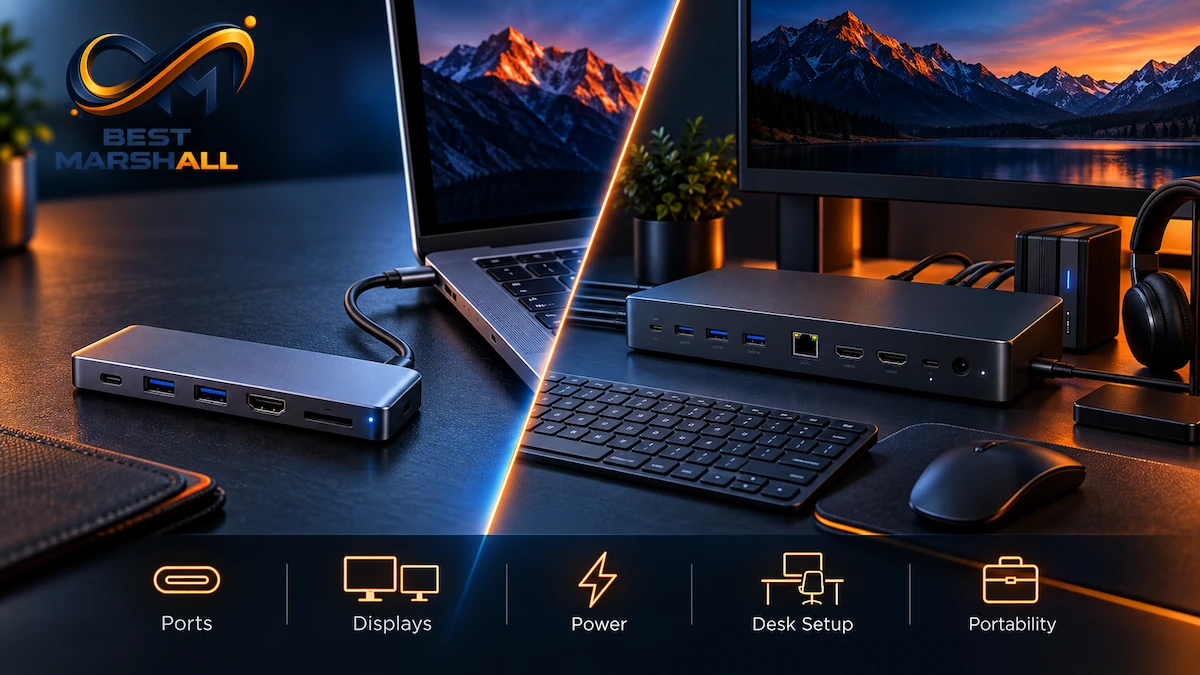
A USB-C hub and a docking station can look surprisingly similar. Both connect to a laptop through one cable and add ports such as USB-A, HDMI, Ethernet, card readers, or USB-C.
The difference is usually not the connector itself.
It is the scale, bandwidth architecture, power system, display capability, and intended role of the device.
A typical USB-C hub is designed as a compact expansion accessory: connect a few peripherals, perhaps one monitor, Ethernet, and pass-through charging, then put the hub back in a laptop bag when you leave.
A docking station is generally designed to become the center of a permanent workstation. It may have its own power supply, charge the laptop, operate multiple displays, provide numerous high-speed ports, support faster networking, and use higher-bandwidth technologies such as USB4, Thunderbolt 4, or Thunderbolt 5.
There is one complication: manufacturers use the terms “hub” and “dock” inconsistently.
A product called a hub can be more capable than a product marketed as a docking station.
That means the correct buying decision should be based on technical specifications rather than the product name.
This guide explains those specifications, including USB bandwidth, DisplayPort Alt Mode, USB4, Thunderbolt, Power Delivery, multi-monitor support, DisplayLink, Ethernet, shared bandwidth, and the compatibility limitations that determine what a hub or dock can actually do.
Quick Answer: What Is the Difference Between a USB-C Hub and a Docking Station?
A USB-C hub is usually a compact, often bus-powered accessory that expands one USB-C port into several basic ports. A docking station is usually a larger, externally powered workstation device designed to handle more peripherals, higher charging power, multiple displays, Ethernet, and higher-bandwidth connections such as USB4 or Thunderbolt.
Typical differences look like this:
| Feature | USB-C Hub | Docking Station |
|---|---|---|
| Primary purpose | Portable port expansion | Full desktop connectivity |
| Typical size | Small | Medium to large |
| External power supply | Often optional or absent | Usually included |
| Laptop charging | Often pass-through | Usually integrated |
| Number of ports | Moderate | Usually higher |
| Multiple monitors | Sometimes | Common |
| High-speed storage | Possible | More common |
| Ethernet | Common | Common, often faster options |
| Thunderbolt/USB4 | Less common | Common in premium docks |
| Portability | High | Lower |
| Typical use | Travel, basic desk expansion | Permanent workstation |
These are market patterns rather than strict engineering definitions.
The word printed on the product box does not guarantee a particular bandwidth, charging rate, or monitor configuration.
Why “Hub” and “Dock” Are Not Formal Performance Categories
One of the biggest sources of confusion is assuming that all hubs belong to one technical class and all docks belong to another.
They do not.
Microsoft describes a dock broadly as a device intended to improve system productivity by adding display and peripheral connectivity.
USB standards, however, define technologies such as:
- USB 2.0;
- USB 5Gbps;
- USB 10Gbps;
- USB 20Gbps;
- USB4;
- USB Power Delivery;
- DisplayPort tunneling.
They do not create a universal consumer rule saying:
“A hub must have X ports and a dock must have Y ports.”
Manufacturers therefore have considerable freedom when naming products.
You may encounter:
- USB-C hubs;
- USB-C docks;
- USB4 hubs;
- USB4 docks;
- Thunderbolt hubs;
- Thunderbolt docks;
- DisplayLink docks;
- travel docks;
- mini docks.
The more reliable question is not:
“Is this a hub or dock?”
It is:
“What does the host connection actually support, and what can this device do with that connection?”
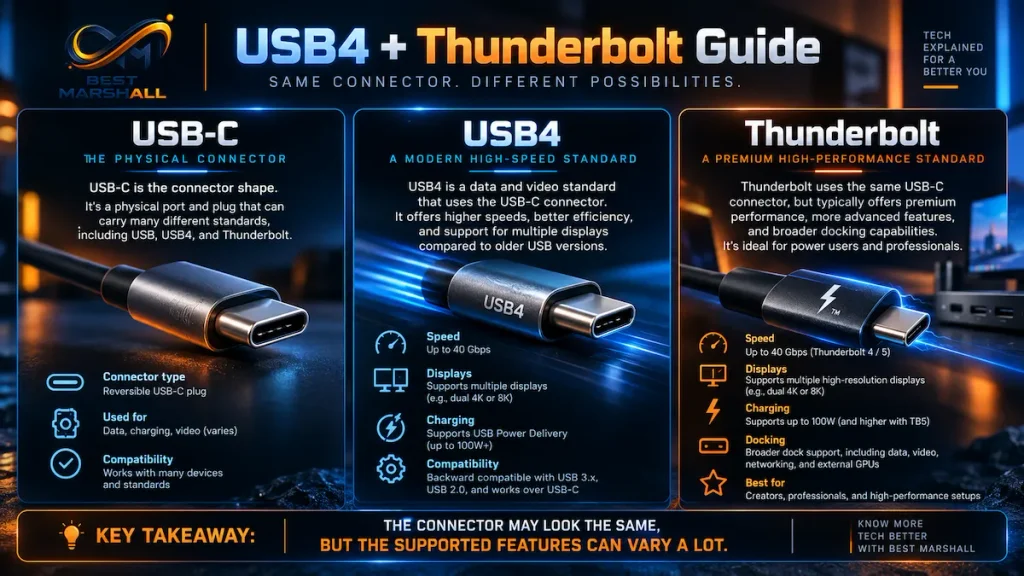
USB-C Is a Connector, Not a Performance Specification
This is the single most important concept when comparing hubs and docks.
USB-C describes the physical connector.
It does not guarantee a specific:
- data speed;
- display capability;
- charging wattage;
- Thunderbolt capability;
- USB4 capability.
Two laptops can both have identical-looking USB-C ports while offering dramatically different functionality.
One may support:
- USB 2.0 data only;
- basic charging.
Another may support:
- USB4;
- DisplayPort;
- PCIe tunneling;
- 40Gbps or 80Gbps connectivity;
- high-wattage charging;
- multiple external displays.
The same problem applies to cables.
A cable with USB-C connectors at both ends does not automatically support every possible USB-C feature.
USB Data Speed: What the Numbers Mean
Current USB naming can be simplified into performance tiers such as:
- USB 5Gbps;
- USB 10Gbps;
- USB 20Gbps;
- USB 40Gbps;
- USB 80Gbps.
The upstream connection from the hub or dock to the computer sets an important ceiling.
Example: A 10Gbps USB-C Hub
Imagine a hub with:
- two USB-A 10Gbps ports;
- one USB-C 10Gbps data port;
- Gigabit Ethernet;
- SD card reader.
Adding the labels together does not create 31Gbps of host bandwidth.
If the entire hub connects to the laptop through one 10Gbps upstream USB link, all of those devices ultimately share that connection.
The ports may individually support high speeds, but the hub cannot magically create more upstream bandwidth than the host link provides.
This becomes especially noticeable when simultaneously using:
- fast external SSDs;
- Ethernet;
- card readers;
- cameras;
- capture devices.
Shared Bandwidth: The Most Overlooked Hub Specification
A hub is fundamentally a traffic-sharing device.
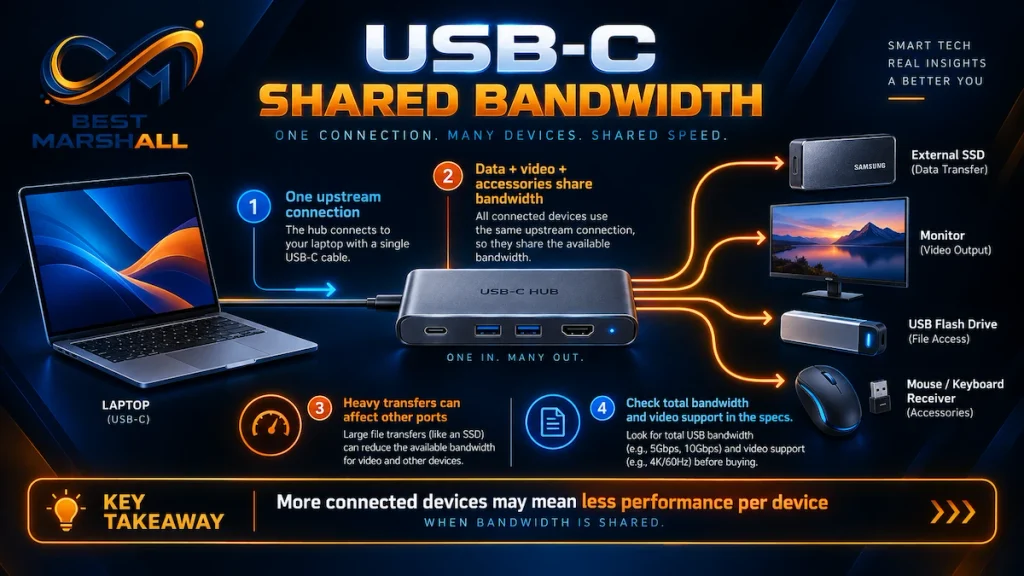
Think of the upstream USB connection as a highway.
Adding more downstream ports creates more entrances to that highway.
It does not necessarily add more lanes.
If a 10Gbps hub has four high-speed ports and four devices are transferring data simultaneously, those devices may have to share available bandwidth.
This does not mean each device is permanently limited to exactly one-quarter of the connection.
USB traffic is dynamic.
A single active SSD may use much of the available data bandwidth. When several high-bandwidth devices operate simultaneously, contention becomes more important.
For typical peripherals such as:
- keyboards;
- mice;
- printers;
- basic webcams;
this is rarely a problem.
For:
- NVMe SSDs;
- 4K capture devices;
- high-resolution cameras;
- multi-gigabit Ethernet;
bandwidth architecture matters much more.
Why Docking Stations Often Have More Bandwidth
Higher-end docking stations commonly use:
- USB4;
- Thunderbolt 4;
- Thunderbolt 5.
USB4 was designed to dynamically share a high-speed connection among multiple types of traffic, including USB data and display protocols.
Current USB4 technology can provide links reaching 80Gbps, depending on implementation.
Thunderbolt imposes more standardized minimum requirements on top of the USB-C/USB4 ecosystem.
Thunderbolt 4
Thunderbolt 4 provides a 40Gbps connection and requires a more consistent feature set than generic USB-C.
Intel’s Thunderbolt 4 requirements include capabilities such as:
- 40Gbps connectivity;
- PCIe tunneling;
- support for high-resolution displays;
- minimum accessory power;
- dock wake functionality on supported PCs;
- mandatory certification.
Thunderbolt 5
Thunderbolt 5 significantly increases bandwidth.
Intel specifies:
- 80Gbps bidirectional bandwidth
- up to 120Gbps transmit bandwidth using Bandwidth Boost for display-intensive workloads
Thunderbolt 5 is built around technologies including USB4 Version 2.0 and DisplayPort 2.1.
This makes Thunderbolt 5 docks particularly relevant to:
- content creators;
- high-resolution multi-monitor setups;
- high-refresh displays;
- high-speed external SSDs;
- professional workstations.
USB-C Hub vs USB4 Hub
A conventional USB-C hub may connect through USB 5Gbps or 10Gbps.
A USB4 hub operates within the USB4 architecture and can support substantially greater aggregate bandwidth.
USB4 also supports tunneling multiple protocols over the same connection.
That can include:
- USB;
- DisplayPort;
- PCI Express, depending on implementation.
However, USB4 capabilities still vary.
USB4 does not impose exactly the same minimum feature set as Thunderbolt certification.
Therefore, seeing “USB4” on a product is not enough.
Check:
- rated bandwidth;
- display specifications;
- charging capability;
- downstream USB4 ports;
- PCIe support where relevant;
- host compatibility.
How Video Travels Through a USB-C Hub
Many conventional USB-C hubs output HDMI or DisplayPort even though the laptop connects through a USB-C cable.
This is commonly achieved using DisplayPort Alternate Mode, or DP Alt Mode.
What Is DisplayPort Alt Mode?
DisplayPort Alt Mode allows a compatible USB-C connection to use high-speed lanes for DisplayPort video.
The USB-C connector therefore carries display information without needing a traditional DisplayPort connector on the laptop.
VESA’s architecture allows DisplayPort and USB data to coexist over USB-C.
Depending on implementation, some high-speed lanes may be allocated to DisplayPort while others remain available for USB data.
This creates a technical trade-off.
A USB-C connection has a finite number of physical high-speed lanes.
Using more lanes for high-bandwidth display output can leave fewer resources available for conventional USB data on some Alt Mode implementations.
Why 4K Video Can Affect USB Data Performance
Consider a traditional USB-C hub that simultaneously provides:
- 4K display output;
- USB data;
- Ethernet;
- card readers.
The hub has to transport all of this through one USB-C host connection.
Depending on the DisplayPort Alt Mode configuration, display traffic may consume physical high-speed lanes that otherwise could have carried USB data.
This is why certain hubs may provide combinations such as:
- 4K/60Hz video with USB data limited to 5Gbps;
- faster USB data with reduced video capability.
The exact behavior depends on:
- host DisplayPort version;
- lane configuration;
- Display Stream Compression;
- hub controller;
- display resolution;
- refresh rate.
Do not assume that “10Gbps hub” means every function operates at full theoretical bandwidth simultaneously.
USB4 and Thunderbolt Handle Display Traffic Differently
USB4 uses tunneling architecture.
Rather than statically assigning the USB-C connection in the same way as traditional Alt Mode implementations, USB4 can transport display and data protocols through the USB4 fabric and dynamically allocate bandwidth.
Microsoft’s current USB4 architecture supports dynamic allocation of DisplayPort tunnel bandwidth on compatible Windows systems.
This becomes particularly useful when a dock is simultaneously handling:
- high-resolution displays;
- storage;
- Ethernet;
- USB peripherals.
Again, the theoretical interface speed does not guarantee that every connected device can operate at its maximum speed simultaneously.
But a higher-bandwidth architecture gives the dock far more room to manage demanding workloads.
Docking Station vs Hub for External Monitors
Displays are one of the biggest practical differences between simple hubs and advanced docks.
Basic USB-C Hubs
A typical portable hub may support:
- one HDMI output;
- one DisplayPort output;
- perhaps two displays on compatible systems.
Advanced Docks
A workstation dock may support:
- multiple HDMI outputs;
- multiple DisplayPort outputs;
- downstream Thunderbolt ports;
- USB-C video outputs;
- several independent displays.
However, the dock’s number of physical video ports does not guarantee that the computer can drive that many monitors.
Your Laptop Determines the Real Monitor Limit
This is one of the most common docking-station mistakes.
A dock cannot automatically give a laptop unlimited display support.
Display capability depends on:
- GPU;
- processor/platform;
- operating system;
- host port;
- DisplayPort implementation;
- dock architecture;
- resolution;
- refresh rate.
Apple, for example, publishes different external-display limits for different MacBook processors.
Some current Macs support one external display, others two, and higher-end configurations may support several.
Apple explicitly notes that connecting a hub or daisy-chained displays does not automatically increase the Mac’s native maximum display count.
This principle applies beyond Macs:
the dock is part of the display path, but the host computer remains a critical part of the system.
Why Two HDMI Ports Do Not Guarantee Two Extended Displays
A docking station with two HDMI connectors could behave in several ways.
It may provide:
- two independent extended displays;
- one extended display plus one mirrored output;
- two outputs that cannot operate simultaneously;
- multiple displays only on particular operating systems;
- two displays only at reduced resolution;
- multiple displays through a software graphics technology.
Always read the display matrix.
A proper product specification should state combinations such as:
- one display: 4K at 120Hz;
- two displays: 4K at 60Hz each;
- three displays: 1080p or another specified combination.
The number of connectors alone tells you very little.
What Is DisplayLink?
Some docking stations use DisplayLink, a USB graphics technology now associated with Synaptics.
DisplayLink takes a different approach from native DisplayPort output.
A DisplayLink-equipped dock contains graphics-processing hardware that works with software on the computer to transport display information through USB.
This can allow additional monitors in situations where the host’s native display outputs are limited.
Current DisplayLink platforms can support multiple high-resolution displays depending on the chipset.
Advantages of DisplayLink
It can be useful for:
- office workstations;
- hot-desking;
- adding multiple productivity displays;
- computers with limited native display outputs.
Trade-Offs
DisplayLink depends on:
- software/driver support;
- host CPU/GPU resources;
- operating-system compatibility;
- the particular DisplayLink chipset.
It is not the same thing as a native GPU-to-DisplayPort connection.
For ordinary productivity applications, this can be an effective solution.
For latency-sensitive or high-performance applications such as certain gaming, color-critical production, or very high-refresh workflows, native display output is generally preferable when available.
USB-C Hub vs Docking Station for MacBooks
Mac users should be particularly careful when buying by port count.
Different Apple Silicon generations have different native external-display limits.
A dock advertising “triple display” for Windows does not automatically provide three extended desktop displays on every Mac.
Before buying, check:
- exact Mac model;
- processor generation;
- Apple-supported number of displays;
- supported resolutions and refresh rates;
- whether the dock uses native video or DisplayLink.
Do not rely solely on the phrase:
“Compatible with MacBook.”
That statement may refer only to basic USB functionality.
USB-C Hub vs Docking Station for Windows Laptops
Windows laptops also vary considerably.
A USB-C port may support:
- USB data only;
- USB data + DisplayPort Alt Mode;
- USB data + Power Delivery;
- USB4;
- Thunderbolt 4;
- Thunderbolt 5.
The operating system cannot create a hardware capability that the port does not have.
If a laptop’s USB-C port lacks video output, a passive DP Alt Mode hub cannot normally generate native display output from that port.
A DisplayLink dock may provide another route because it converts USB data into display output through its own graphics architecture.
That is a fundamentally different technology.
Power: Another Major Difference Between Hubs and Docks
Portable hubs are frequently bus powered.
That means they receive operating power from the laptop.
Docking stations are more commonly self powered, using an external AC power supply.
This distinction affects:
- laptop charging;
- peripheral power;
- drive stability;
- number of connected devices;
- downstream charging.
What Is Bus Power?
A bus-powered hub uses electricity from its host connection.
Advantages include:
- no wall adapter;
- lower weight;
- easier travel.
Disadvantages include:
- limited power budget;
- connected devices share available power;
- high-demand peripherals may be problematic.
A keyboard and mouse require very little power.
External storage, optical drives, capture devices, phones, and other equipment may require considerably more.
What Is Self-Powered Docking?
A self-powered dock has its own power supply.
That power can be divided among:
- the dock electronics;
- USB peripherals;
- Ethernet;
- displays/interfaces;
- the connected laptop.
A high-powered desktop dock may therefore replace the laptop’s normal charger.
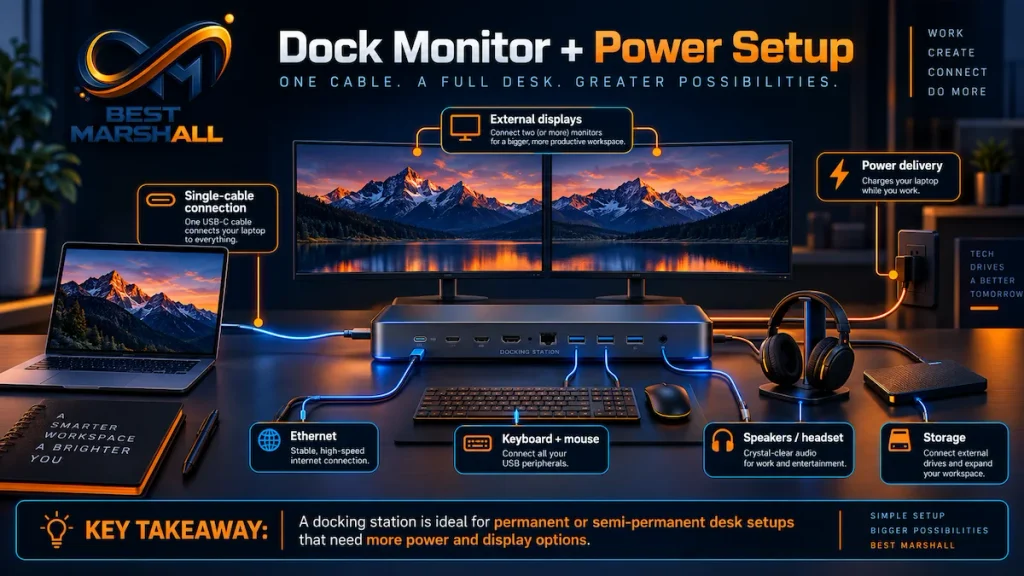
You arrive at the desk, connect one cable, and receive:
- data;
- monitors;
- Ethernet;
- peripherals;
- laptop charging.
This is the classic docking-station workflow.
USB Power Delivery Explained
USB Power Delivery, or USB PD, allows compatible USB-C devices to negotiate power.
The current USB PD architecture supports power levels reaching as high as 240W through Extended Power Range configurations.
That does not mean every hub or dock provides 240W.
Actual products may deliver values such as:
- 45W;
- 65W;
- 85W;
- 90W;
- 100W;
- 140W;
- higher levels on specific modern systems.
The host computer must also support the corresponding charging mode.
Why 100W Input Does Not Mean 100W Laptop Charging
This is a common hub specification trap.
A portable hub may advertise:
100W PD
But the fine print may indicate:
- 100W maximum charger input;
- 85W or 90W maximum host output.
Why?
The hub itself consumes power.
If a 100W charger feeds the hub, some of that power may be reserved for:
- hub electronics;
- USB devices;
- card readers;
- Ethernet;
- other connected equipment.
Always distinguish:
PD input
from:
power delivered to the host laptop
They are not necessarily identical.
Why Docks Usually Have Better Power Distribution
A larger docking station may ship with a 120W, 180W, or even more powerful AC adapter.
The dock can then allocate power among the host and peripherals.
This is particularly useful for professional laptops that require substantial charging power.
A portable USB-C hub with a 100W pass-through rating may be perfectly adequate for an ultrabook while being less appropriate for a high-performance workstation laptop.
USB-C Hub vs Docking Station for Ethernet
Both categories commonly offer Ethernet.
Typical configurations include:
- Gigabit Ethernet;
- 2.5GbE on higher-end products.
For normal home internet connections, 1GbE may be sufficient.
2.5GbE becomes more useful for:
- network-attached storage;
- local file servers;
- high-speed fiber internet;
- large media files;
- professional backups.
But network throughput also consumes host-link bandwidth.
A 2.5GbE adapter connected through a heavily loaded 5Gbps or 10Gbps hub competes with other active USB devices.
Again, the system is limited by the complete data path.
USB-C Hub vs Docking Station for External SSDs
High-speed external storage makes bandwidth limits particularly visible.
A fast USB SSD may support:
- 5Gbps;
- 10Gbps;
- 20Gbps;
- USB4 or Thunderbolt speeds.
Connecting a high-speed drive to a 10Gbps hub prevents it from exceeding the hub’s relevant data path.
Connecting several SSDs simultaneously creates additional competition for shared bandwidth.
Professional workflows involving:
- video editing;
- RAW photo libraries;
- large project files;
- virtual machines;
benefit more from USB4 or Thunderbolt docks with higher-bandwidth downstream connections.
USB-C Hub vs Docking Station: Side-by-Side Technical Comparison
| Technical Factor | USB-C Hub | Docking Station |
|---|---|---|
| Intended role | Port expansion | Workstation consolidation |
| Typical host technology | USB 5–10Gbps, sometimes faster | USB-C, USB4, Thunderbolt 4/5 |
| Power source | Often host-powered | Usually external PSU |
| Laptop charging | Common pass-through | Common integrated charging |
| Typical monitor count | 1–2 | 1–4+, host dependent |
| Data bandwidth | Often 5–10Gbps | Can reach 40–80Gbps+ |
| High-speed storage | Moderate | Better suited to demanding storage |
| Ethernet | Often 1GbE | 1GbE, 2.5GbE, sometimes higher |
| Audio ports | Sometimes | Common |
| SD/microSD | Common | Common |
| Downstream USB-C/TB | Limited | More common |
| Travel convenience | Excellent | Usually poor |
| Cable management | Moderate | Excellent for permanent desks |
| DisplayLink options | Possible | Common in universal docks |
| Enterprise features | Rare | More common |
| Cost | Usually lower | Usually higher |
These differences are tendencies, not formal product-class rules.
Which Is Better for a Desk Setup?
For a permanent laptop workstation, a docking station often provides the cleaner architecture.
One host cable can connect:
- monitor or monitors;
- keyboard;
- mouse;
- Ethernet;
- speakers;
- webcam;
- external storage;
- laptop charging.
The computer can effectively behave like a desktop while docked.
This reduces repeated cable connections and helps centralize cable management.
A hub can provide the same basic idea when the setup is simpler.
For example:
- one 4K display;
- keyboard;
- mouse;
- Gigabit Ethernet;
- occasional SD card use.
In that scenario, a full Thunderbolt dock may add cost without providing meaningful value.
Which Is Better for Travel?
A USB-C hub usually makes more sense.
Travel priorities are different:
- small size;
- low weight;
- no external power brick;
- HDMI for hotel or conference displays;
- USB-A;
- card readers;
- occasional Ethernet.
A large powered docking station is generally designed to remain on a desk.
A hub is designed to expand a mobile computer temporarily.
Which Is Better for Dual Monitors?
The answer depends more on the host and dock architecture than on the word “dock.”
Before buying, verify:
- does the laptop support two external displays?
- does the USB-C port support DP Alt Mode, USB4, or Thunderbolt?
- what resolutions and refresh rates are supported simultaneously?
- does the dock use MST?
- does it use Thunderbolt display tunneling?
- does it use DisplayLink?
A dual-monitor dock is only useful when the entire system supports the required display configuration.
Which Is Better for 4K 120Hz or High-Refresh Displays?
High-resolution, high-refresh video consumes substantial bandwidth.
For demanding monitors, prioritize:
- high-bandwidth host interface;
- appropriate DisplayPort or HDMI version;
- explicit resolution/refresh-rate documentation;
- compatible cables;
- host GPU support.
A basic USB-C hub marketed primarily for office use may be limited to:
- 4K/30Hz;
- 4K/60Hz;
- lower refresh rates when multiple monitors are attached.
Thunderbolt 5 and high-performance USB4 solutions provide substantially more headroom for advanced display configurations.
For gaming or professional high-refresh setups, direct GPU connection may still provide the cleanest compatibility path in some systems.
Professional Evaluation Criteria for a Hub or Dock
1. Host Interface
First determine what connects the device to the laptop:
- USB 5Gbps;
- USB 10Gbps;
- USB 20Gbps;
- USB4 40Gbps;
- USB4 80Gbps;
- Thunderbolt 4;
- Thunderbolt 5.
This is one of the most important specifications.
2. Display Architecture
Identify whether monitors use:
- DP Alt Mode;
- USB4 DisplayPort tunneling;
- Thunderbolt;
- DisplayLink.
These technologies behave differently.
3. Power Delivery
Check:
- power supply wattage;
- host charging wattage;
- downstream charging;
- whether the power adapter is included.
4. Port Speeds
Do not count ports only.
Determine the speed of each port.
A dock with six USB ports could include:
- one 10Gbps port;
- two 5Gbps ports;
- three USB 2.0 ports.
That is very different from six 10Gbps ports.
5. Bandwidth Sharing
Check whether certain ports:
- share bandwidth;
- disable each other;
- reduce speed when used simultaneously.
6. Monitor Matrix
Look for exact supported combinations.
For example:
- one monitor at 4K/120Hz;
- two at 4K/60Hz;
- three at lower resolutions.
7. Host Compatibility
Verify:
- Windows;
- macOS;
- ChromeOS;
- Linux;
- exact laptop model;
- required drivers.
8. Cable Requirements
The host cable must support the required:
- data rate;
- display protocol;
- charging power.
The USB-IF’s current certification framework distinguishes USB-C cables by capabilities such as supported data rate and power level.
A cable that physically fits can still become the limiting component.
Common Beginner Mistakes With USB-C Hubs and Docks
Mistake 1: Assuming Every USB-C Port Does Everything
USB-C is only the connector.
Check data, video, and charging capabilities separately.
Mistake 2: Choosing by Number of Ports
Ten slow or shared ports can be less useful than six appropriately specified ones.
Mistake 3: Assuming a Dock Creates More GPU Outputs
It cannot automatically override the host computer’s native display limitations.
Mistake 4: Assuming Two HDMI Ports Mean Two Extended Monitors
The outputs may mirror, share resources, or require specific host support.
Mistake 5: Ignoring Refresh Rate
“4K support” could mean 4K at 30Hz rather than 60Hz, 120Hz, or higher.
For desktop productivity, 30Hz cursor motion can feel noticeably less fluid than 60Hz.
Mistake 6: Confusing PD Input With Host Charging
A 100W PD input may deliver less than 100W to the laptop.
Mistake 7: Assuming USB-C Means Thunderbolt
Thunderbolt uses the USB-C connector, but not every USB-C port supports Thunderbolt.
Mistake 8: Ignoring Shared Bandwidth
Several 10Gbps ports do not guarantee several simultaneous 10Gbps transfers through one 10Gbps uplink.
Mistake 9: Using the Wrong Cable
A low-capability cable can limit data speed, displays, or charging.
Mistake 10: Buying DisplayLink Without Understanding It
DisplayLink can be extremely useful, but it is software-assisted USB graphics rather than the same native display path used by DisplayPort or Thunderbolt.
Mistake 11: Buying a Large Dock for Simple Needs
If you need only HDMI, USB-A, and an SD reader, a portable hub may provide better value.
Mistake 12: Buying a Small Hub for a Professional Workstation
A creator using several displays, SSDs, Ethernet, capture hardware, and laptop charging may exceed the practical limits of a compact basic hub.
How to Choose Between a USB-C Hub and Docking Station
Choose a USB-C Hub If:
- portability matters;
- you travel frequently;
- you need a few extra ports;
- one monitor is sufficient;
- you primarily use keyboards, mice, SD cards, and basic storage;
- you already carry the laptop charger;
- cost matters more than maximum expansion.
If those criteria match your setup, our guide on how to choose a USB-C hub explains which ports, display features, power delivery specs, and compatibility details matter most.
Choose a Docking Station If:
- the laptop remains on a desk for long periods;
- you use multiple monitors;
- you need wired networking;
- several peripherals remain permanently connected;
- you want single-cable laptop charging;
- you use high-speed external storage;
- cable management matters;
- you need USB4 or Thunderbolt bandwidth.
Technical Checklist Before Buying
Before choosing either device, answer these questions.
Host Port
- Does the laptop support DisplayPort Alt Mode?
- Does it support USB4?
- Does it support Thunderbolt?
- What is the maximum data rate?
Displays
- How many external monitors does the laptop natively support?
- What resolution?
- What refresh rate?
- Do you need HDR?
- Do you need variable refresh rate?
Charging
- How many watts does the laptop require?
- How much power does the hub or dock actually deliver to the host?
- Is the power supply included?
Peripherals
List everything you need to connect:
- mouse;
- keyboard;
- webcam;
- microphone;
- SSD;
- card reader;
- Ethernet;
- speakers;
- monitor;
- capture card.
Then estimate which devices compete for bandwidth.
Network
- Is 1GbE sufficient?
- Would 2.5GbE improve NAS or local-network performance?
Portability
- Will the device remain at the desk?
- Does it need to fit in a laptop bag?
- Are you willing to carry a power supply?
Beginner, Intermediate, and Advanced Users
Beginner User
Focus on:
- correct laptop compatibility;
- required ports;
- one or two monitors;
- enough charging power;
- USB data speed.
Do not choose based on the number of connectors alone.
Intermediate User
Evaluate:
- DisplayPort Alt Mode;
- USB4;
- Power Delivery;
- shared bandwidth;
- 4K refresh rates;
- Ethernet speed;
- multi-monitor limitations.
Advanced User
Analyze the entire connection topology:
- upstream link bandwidth;
- DisplayPort tunneling;
- PCIe tunneling;
- Display Stream Compression;
- native vs. DisplayLink video;
- downstream USB controllers;
- per-port bandwidth;
- power-budget allocation;
- monitor topology;
- cable certification;
- host GPU constraints.
For advanced workstation design, the dock should be viewed as part of a complete I/O architecture rather than merely a box containing extra ports.
Technical FAQ
Is a USB-C hub the same as a docking station?
No, although the terms overlap. A hub usually provides portable port expansion, while a docking station typically provides a more complete powered workstation connection.
Is a docking station faster than a USB-C hub?
Not automatically. Speed depends on the host interface. A USB4 hub can be faster than a basic USB-C docking station.
Is Thunderbolt a docking station?
No. Thunderbolt is a high-performance connectivity technology. Hubs and docking stations can both use Thunderbolt.
Is USB4 the same as Thunderbolt?
No. They are closely related technologies, but Thunderbolt applies additional feature and certification requirements. Current Thunderbolt generations build on USB4 technology.
Is Thunderbolt 4 faster than USB4?
Thunderbolt 4 provides a required 40Gbps connection, while USB4 implementations can vary and current USB4 technology can reach higher speeds. The important distinction is that Thunderbolt imposes more mandatory capabilities.
How fast is Thunderbolt 5?
Thunderbolt 5 provides 80Gbps bidirectional bandwidth and can allocate up to 120Gbps in one direction for display-intensive workloads using Bandwidth Boost.
Can a USB-C hub charge a laptop?
Yes, if the hub supports USB Power Delivery pass-through and the laptop supports USB-C charging. Check the actual host charging wattage.
Can a docking station replace my laptop charger?
Often yes. A powered dock can supply laptop charging if its host Power Delivery output meets the laptop’s requirements.
Why does a 100W hub only charge my laptop at 85W?
The 100W figure may describe input power. The hub needs some power for its own circuitry and connected devices, leaving less for the laptop.
Can a USB-C hub run two monitors?
Some can, but support depends on the hub, host computer, operating system, GPU, and display protocol.
Why do both monitors mirror each other through my dock?
The host or dock architecture may not support two independent native display streams in that configuration. Check whether the dock uses MST, Thunderbolt, or DisplayLink and verify OS compatibility.
Can a dock increase the maximum number of monitors on a Mac?
A native hub or dock does not automatically override the Mac’s supported external-display limit. Some software-based DisplayLink docks can provide additional display functionality through a different architecture.
What is DisplayPort Alt Mode?
It allows a USB-C connection to carry native DisplayPort video using the connector’s high-speed lanes.
What is DisplayLink?
DisplayLink is a USB graphics technology that uses dedicated dock hardware plus software to transport display data through USB.
Is DisplayLink the same as DisplayPort?
No. DisplayPort is a native display-interface technology. DisplayLink is a USB-based graphics solution.
Can a hub slow down an external SSD?
Yes. If the hub’s upstream connection or internal controller is slower than the SSD, or if several devices share the same connection, storage performance can be limited.
Is 10Gbps enough for a USB-C hub?
For most office setups, yes. It is sufficient for normal peripherals, Gigabit Ethernet, card readers, and many external SSDs. Heavy multi-device workflows may benefit from USB4 or Thunderbolt.
Do all USB-C cables support 100W charging?
No. Cable power and data capabilities vary. Current certified USB-C cable programs identify different supported power levels.
Does a more expensive docking station always perform better?
No. It may provide more ports, power, and bandwidth, but the additional capability has little value if the laptop cannot use it.
Do I need Thunderbolt for a home office?
Not necessarily. A basic USB-C hub may be sufficient for one monitor, Ethernet, keyboard, mouse, and moderate storage. Thunderbolt becomes more valuable as display and data requirements increase.
Is a docking station worth it for a desktop PC?
Usually less so, because desktop systems already provide extensive native ports. Docks are most useful for laptops and compact systems where single-cable expansion has practical value.
Can I connect a dock to another hub?
Sometimes technically, but cascading hubs can create bandwidth, power, and compatibility issues. For critical high-bandwidth devices, direct connection to the main dock or host is preferable.
Expert Conclusion: USB-C Hub or Docking Station?
The practical difference between a USB-C hub and a docking station is not the shape of the device or the number of ports printed on the box.
It is the role the device plays in the computer’s I/O architecture.
A USB-C hub is usually the better fit for:
- portable expansion;
- travel;
- one-monitor setups;
- basic USB peripherals;
- card readers;
- occasional Ethernet.
If that sounds like your setup, compare our picks for the best USB-C hubs in 2026 to see which current models best match those needs.
A docking station becomes more compelling for:
- permanent desks;
- multiple displays;
- laptop charging;
- several high-speed peripherals;
- faster Ethernet;
- external SSD workflows;
- USB4 or Thunderbolt connectivity.
The most important purchasing rule is to look beyond the words “hub” and “dock.”
Verify:
- host connection speed;
- USB4 or Thunderbolt support;
- DisplayPort capability;
- exact monitor combinations;
- charging wattage delivered to the laptop;
- per-port data speeds;
- bandwidth sharing;
- Ethernet speed;
- operating-system compatibility;
- cable requirements.
A 12-port dock connected through an inadequate host interface can be less capable than a carefully designed six-port hub.
Conversely, a high-bandwidth Thunderbolt or USB4 dock can turn a thin laptop into a workstation capable of driving displays, networking, storage, audio, and peripherals through one connection.
The right choice therefore depends on what needs to travel through that one cable—and whether the computer, dock, and cable can all support it.