A comfortable home office isn’t necessarily the one with the most expensive chair, the largest desk, or the latest ergonomic accessories. It’s the one that fits your body, supports your work, and allows you to change positions throughout the day.
A poorly arranged workstation can make ordinary tasks more demanding. A monitor positioned too low may encourage repeated neck bending. A keyboard placed too high can leave your shoulders tense. A mouse positioned beyond comfortable reach may require unnecessary arm movement.
These problems are especially relevant when working from home, where dining tables, compact desks, and laptop-only arrangements often substitute for dedicated office furniture.
The good news is that an ergonomic home office setup doesn’t have to begin with a shopping list.
In many cases, the first improvements involve adjusting equipment you already own, identifying where your current setup doesn’t fit, and making small changes to how you work.
This guide explains the principles of home office ergonomics, how to adjust your workstation, which equipment features matter, and how to build healthier work habits without unnecessary purchases.
What Makes a Home Office Setup Ergonomic?
Ergonomics is the process of designing and adapting tools, environments, and tasks to better fit the people using them.
For computer work, that means arranging furniture and equipment so you can perform routine tasks without unnecessary reaching, sustained awkward joint positions, excessive contact pressure, or prolonged immobility.
An ergonomic workstation should support your work rather than force your body to adapt continually to poorly positioned equipment.
Ergonomics Is About Fit, Not Perfect Posture
One of the most common misconceptions about office ergonomics is that everyone should sit in one perfectly upright position throughout the day.
There is no universal posture that works for every person, every task, and every moment.
Body proportions differ. Some people have relatively long legs or short torsos. Others need different monitor positions because of their vision, prescription lenses, or mobility requirements.
The goal is to establish comfortable, reasonably neutral working positions while allowing natural movement.
According to OSHA’s computer workstation guidance, neutral body positioning generally involves:
- Keeping the head aligned with the torso rather than consistently reaching forward.
- Allowing the shoulders to remain relaxed.
- Keeping the elbows near the body.
- Maintaining reasonably straight wrists and forearms.
- Supporting the lower back.
- Keeping the feet supported by the floor or an appropriate footrest.
These are reference principles, not rigid anatomical measurements.
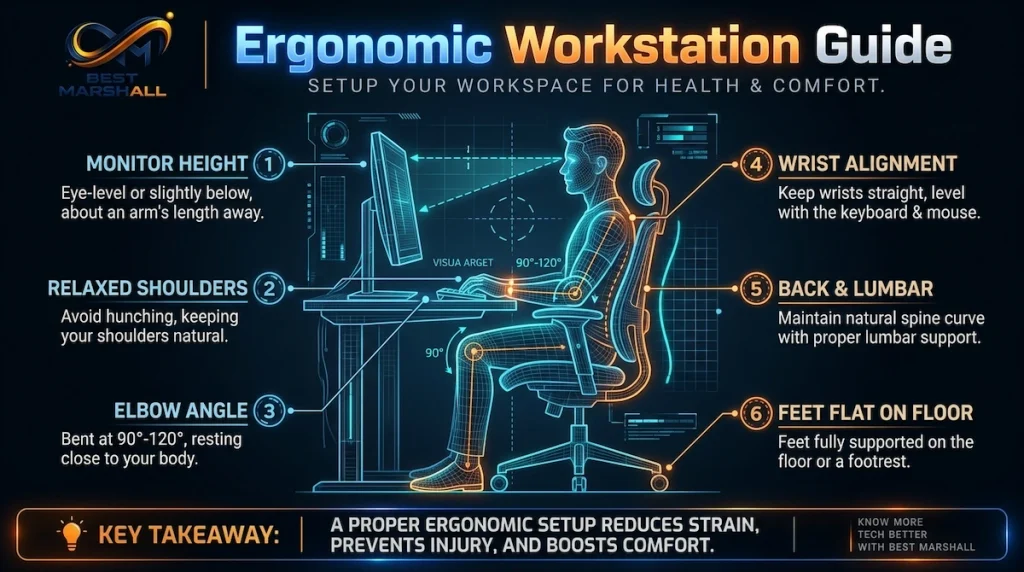
For example, OSHA describes an elbow angle of approximately 90–120 degrees as compatible with neutral positioning. That doesn’t mean you need to measure your elbows throughout the workday.
The more useful question is whether your workstation allows you to work without repeatedly raising your shoulders, bending your wrists, or leaning toward the screen.
Just as importantly, even a comfortable position shouldn’t be maintained indefinitely.
The Five Elements of a Better Workstation
A practical home office ergonomics assessment should consider five connected elements:
| Element | What to evaluate | Why it matters |
|---|---|---|
| Seating | Height, depth, back support, and stability | Influences overall body positioning and comfort |
| Work surface | Height, clearance, and available space | Determines reaching distances and input-device placement |
| Screen and input devices | Monitor height, distance, keyboard, and mouse | Influences head, neck, shoulder, and wrist positions |
| Workspace environment | Lighting, glare, and equipment organization | Affects visibility and physical movement |
| Work habits | Breaks, task variation, and physical activity | Helps prevent remaining in one position for excessively long periods |
These elements influence one another.
A higher chair, for instance, may improve your elbow position relative to the desk but leave your feet unsupported. A monitor arm can improve screen positioning but may not help if the desk is too shallow or the keyboard is poorly placed.
Effective ergonomics means considering the entire workstation as a system.
Assess Your Current Home Office Before Buying Anything
Before changing furniture or purchasing accessories, observe how you actually use your workspace.
Don’t evaluate it only when you’re consciously trying to sit correctly. Notice your position during normal typing, video meetings, reading, and mouse-intensive tasks.
The goal is to identify the specific adjustments that could improve your setup.
Identify the Most Common Setup Problems
Common issues include:
- Forward head posture: Leaning toward a screen that’s difficult to read or positioned too far away.
- Elevated shoulders: Working with a keyboard or desk surface that’s too high relative to the chair.
- Unsupported feet: Raising a chair to reach the desk without providing adequate foot support.
- Excessive mouse reach: Keeping the pointing device too far from the keyboard.
- Bent wrists: Using input devices at an uncomfortable height or angle.
- Restricted legroom: Storing equipment or boxes beneath the desk.
- Screen glare: Positioning a display where windows or lights create reflections.
- Limited movement: Remaining seated through long work sessions without changing position.
One workstation may have several of these problems simultaneously.
However, their solutions aren’t always independent.
If your chair needs to be raised so your elbows can reach a fixed desk comfortably, you may also need a footrest. If you move your monitor closer, you may need to reorganize your keyboard or other accessories to preserve adequate working space.
Making adjustments in a deliberate sequence helps prevent one improvement from creating another problem.
Use a Simple Workstation Self-Assessment
Start by answering these questions while sitting in your normal working position:
- Are your feet comfortably supported?
- Does the chair support your back without forcing an uncomfortable posture?
- Can your shoulders remain relaxed while typing?
- Are your wrists reasonably aligned with your forearms?
- Can you reach the mouse without repeatedly extending your arm?
- Can you view the screen without constantly bending or rotating your neck?
- Is the display readable without leaning forward?
- Do you have enough room to change position?
- Are screen reflections interfering with visibility?
- Do you regularly interrupt long periods of sitting or standing?
A “no” answer identifies something worth investigating, not proof of an injury or medical condition.
For a more detailed assessment, OSHA provides an official computer workstation evaluation checklist.
Once you’ve identified the main limitations, make one or two adjustments and reassess how the workstation functions during ordinary tasks.
Adjust Your Chair and Desk for Better Support
Your chair and desk establish the working height for much of your setup. Their relationship affects everything from foot support to keyboard positioning.
A chair cannot be evaluated independently of the surface in front of it.
Chair Height, Seat Depth, and Lumbar Support
Start with the height of your chair.
Your feet should rest comfortably on the floor or a stable footrest. Your thighs should be supported without excessive pressure along the underside of the legs, and you should have enough space behind your knees to avoid the seat edge pressing into them.
A chair with adjustable seat height makes this easier, but seat height alone doesn’t determine whether a chair fits.
Seat depth is equally important.
A seat that’s too deep may prevent you from using the backrest without pressure behind your knees. A seat that’s too shallow may provide inadequate thigh support.
An adjustable seat pan can accommodate a wider range of body proportions.
Lumbar support should help support the natural lower-back region without creating an uncomfortable pressure point.
Some chairs provide adjustable lumbar mechanisms. Others use a shaped backrest.
Neither design is automatically superior for every person. Fit, stability, and comfort matter more than the number of adjustments advertised.
Armrests also deserve attention.
They can provide intermittent arm support, but poorly positioned armrests may interfere with your desk or encourage raised shoulders.
If the armrests prevent you from moving close enough to the keyboard, lowering or repositioning them may be preferable.
An ergonomic office chair should therefore be evaluated by how well it fits your body and workstation—not simply its appearance, brand, or price.
Desk Height, Elbow Position, and Foot Support
Once the chair is positioned comfortably, examine the relationship between your elbows and the keyboard.
Your shoulders should generally remain relaxed, with your elbows close to your sides and your forearms in a comfortable working position.
If the keyboard is much higher than your relaxed elbow position, you may compensate by raising your shoulders or extending your wrists.
If it’s substantially lower, you may need to lean forward or work with an uncomfortable arm position.
A fixed-height desk creates an important practical challenge: the desk may not match your body proportions.
Three possible approaches are:
- Adjusting the chair while preserving adequate foot support.
- Using a suitable keyboard surface when the main desktop is too high.
- Switching to an adjustable-height work surface when the existing desk cannot accommodate a workable position.
A footrest may help when raising the chair is necessary to bring your hands to a comfortable height, but your feet no longer reach the floor.
Choose one that provides stable support without restricting normal leg movement.
Also check under-desk clearance. Drawers, computer towers, storage boxes, and structural crossbars should not prevent you from moving your legs or sitting close enough to the work surface.
Remember that the objective isn’t to achieve an exact mathematical sitting position. It’s to establish a workable arrangement that minimizes unnecessary strain and still allows you to move.
When an Adjustable or Sit-Stand Desk Makes Sense
A height-adjustable desk can make it easier to switch between seated and standing work.
This can be particularly useful when a fixed desk’s height doesn’t fit your seated posture or when multiple people share the workstation.
Electric sit-stand desks typically offer powered height adjustment, while manual versions use mechanical systems.
The relevant selection criteria include:
- Minimum and maximum adjustment height.
- Stability at the heights you expect to use.
- Weight capacity for monitors and other equipment.
- Available desktop depth and width.
- Clearance around the desk.
- Safe cable routing.
- Ease of changing positions.
- Compatibility with monitor arms and accessories.
A more expensive lifting system isn’t necessarily useful if the desk doesn’t reach an appropriate height for the user.
Check mechanical safety before operating a height-adjustable desk.
The desk should have adequate clearance from nearby furniture, shelves, windowsills, and other obstacles throughout its movement range.
Secure cables so they don’t become stretched or trapped as the work surface moves. Keep hands, pets, and loose objects away from moving mechanisms and potential pinch points.
Verify the manufacturer’s load rating rather than assuming that a powered desk can safely support any equipment arrangement.
And a standing desk doesn’t make standing all day the objective.
Prolonged standing can also cause discomfort. A more reasonable approach is to alternate between suitable seated and standing positions while maintaining opportunities to walk and move.
An adjustable desk offers flexibility. It does not replace regular physical activity or guarantee protection against back pain.
Position Your Monitor and Laptop Correctly
Monitor placement affects both viewing comfort and neck position.
If your display is too low, too high, too far away, or difficult to read, you may compensate by moving your head and torso instead of adjusting the equipment.
Screen Height, Viewing Distance, and Neck Position
A useful starting point is to position your primary monitor directly in front of you, with the top of the visible display approximately at or slightly below eye level.
Your eyes should generally look slightly downward toward the central working area of the screen without requiring sustained neck bending.
This isn’t an absolute rule.
People who use bifocals or progressive lenses, for example, may need a different screen position to avoid lifting their chin while viewing through a particular part of their lenses.
Viewing distance also depends on display size, resolution, text scaling, and individual visual needs.
OSHA describes a general preferred monitor viewing distance of approximately 20–40 inches (50–100 cm), while the American Optometric Association provides a narrower reference range of approximately 20–28 inches for typical computer viewing.
These ranges serve different guidance contexts and shouldn’t be treated as competing universal requirements.
Start at a distance where text is comfortably readable, the screen can be viewed without repeatedly leaning forward, and your head and torso remain appropriately supported.
If text appears too small, consider adjusting software scaling or font size before moving the screen excessively close.
A monitor arm can provide greater positioning flexibility, but a stable adjustable monitor stand may accomplish the same goal.
Before purchasing a monitor arm, verify the monitor’s VESA mounting pattern where applicable, supported weight, compatible screen dimensions, and the strength and construction of the desk.
Some thin, glass, or structurally unsuitable desktops may not safely support certain clamp-mounted arms. Follow the mounting instructions and load limits.
Dual-Monitor and Ultrawide Setups
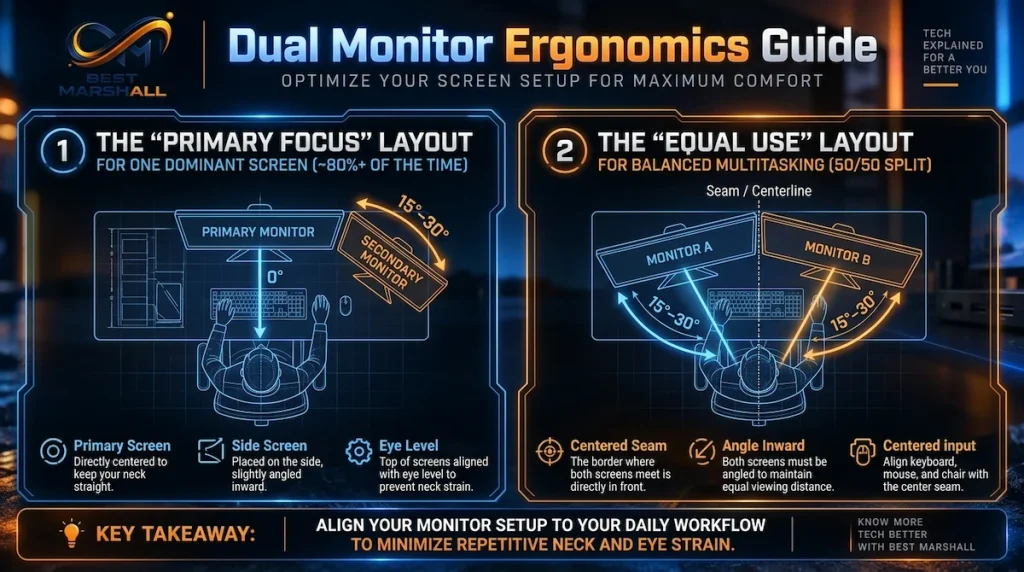
Two-monitor arrangements require more deliberate positioning because screen usage determines where your head will turn.
If you use one monitor most of the time, position it directly in front of you and place the secondary display beside it.
This avoids spending the majority of the workday looking toward one side.
If you use both monitors equally, positioning them close together with their inner edges near your central line of sight may reduce the amount of head rotation required to switch between displays.
Try to keep frequently used viewing areas within a comfortable range of eye and neck movement.
Ultrawide monitors present a related challenge.
They provide extensive horizontal workspace, but frequently used content placed at the far edges can encourage repeated head rotation.
Keep your most important work area near the center and position secondary windows according to how often you need them.
For any multi-monitor arrangement, consider:
- Screen distance and readability.
- Desk depth.
- Display height and tilt.
- Task distribution between screens.
- Window placement.
- Glare and lighting.
- Space for the keyboard and mouse.
The goal is to arrange your screens around your workflow rather than force your workflow to fit an inconvenient arrangement.
Laptop Stands, External Keyboards, and Hybrid Work
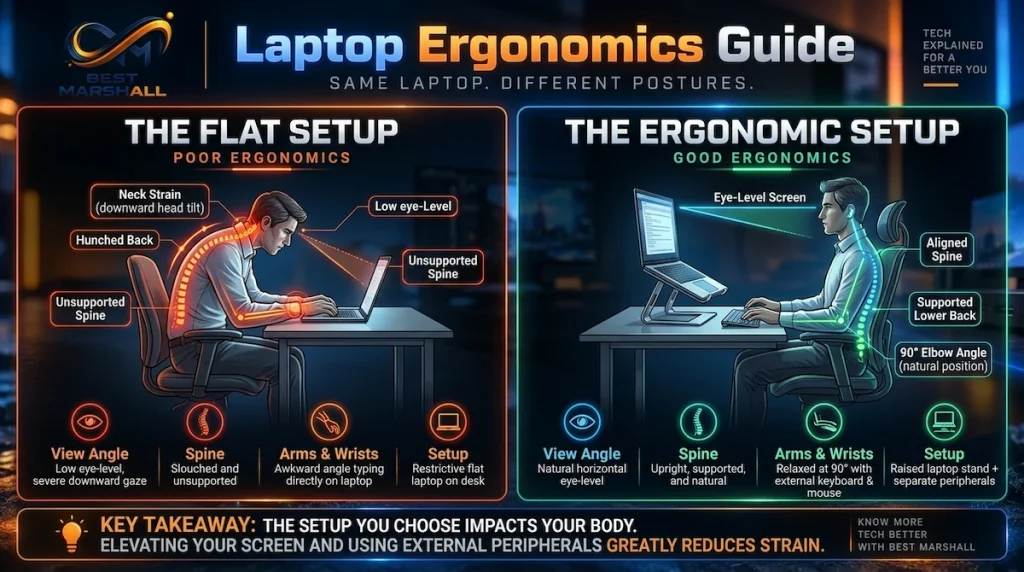
Laptop computers present an inherent ergonomic compromise.
Their screens and keyboards are physically connected. Raising the display also raises the keyboard, while positioning the keyboard for comfortable typing generally leaves the screen relatively low.
For occasional short tasks, this compromise may be manageable.
For prolonged desk-based work, a laptop stand paired with an external keyboard and mouse often allows more independent adjustment of viewing and input positions.
Laptop stands vary in height, adjustment range, stability, portability, and compatibility.
A lightweight folding stand may suit hybrid workers who frequently move between locations. A heavier fixed stand may provide greater stability in a permanent workspace.
However, not every stand is suitable for every device.
Check that it supports the laptop’s dimensions and weight, avoids obstructing necessary ventilation, and remains stable during normal use.
For a closer look at the different designs and use cases, see our guide to the best laptop stands for a better desk setup.
If you work from multiple locations, try to preserve consistent principles rather than identical measurements.
A portable setup with a stable laptop stand, compact keyboard, mouse, and appropriate seating adjustments can provide a more practical compromise than attempting to replicate an entire dedicated office.
Set Up Your Keyboard and Mouse for Comfortable Input
Keyboard and mouse placement directly affects the hands, wrists, forearms, elbows, and shoulders.
Even excellent input devices can create awkward working positions if they are placed too far away or used at the wrong height.
Keyboard Height, Wrist Alignment, and Reach
Position your keyboard close enough that you can type without reaching forward or raising your shoulders.
Your elbows should remain near your sides, and your wrists should generally align with your forearms rather than bending sharply upward, downward, or sideways.
Keyboard tilt can influence wrist extension.
A keyboard with raised rear feet isn’t necessarily more ergonomic, particularly if that angle forces your wrists upward.
Depending on the keyboard, desk height, and hand position, a flatter or slightly negative typing angle may be more comfortable.
There is no universal keyboard angle for everyone.
The key variables are:
- Work surface height.
- Keyboard thickness and tilt.
- Chair position.
- Hand and forearm alignment.
- Distance from the body.
- Typing technique.
Keep frequently used keys accessible without unnecessary reaching.
A full-size keyboard with a numeric keypad may push a right-handed mouse farther from the body.
If you perform mouse-intensive work and rarely use the number pad, a compact or tenkeyless keyboard may help reduce that reaching distance.
However, users who frequently enter numerical data may benefit more from retaining a dedicated number pad.
The appropriate choice depends on the actual task.
Standard, Vertical, and Alternative Mice
Conventional mice generally position the palm toward the desk, placing the forearm in a more pronated orientation.
Vertical mice rotate the hand toward a handshake-like position, which can reduce forearm pronation.
This difference changes how the hand and forearm are positioned, but it doesn’t mean that a vertical mouse is automatically healthier or more comfortable for everyone.
Device size, grip, placement, sensitivity, and the user’s task all influence the result.
A vertical mouse that’s too large can still encourage awkward wrist positioning. A regular mouse that fits the user’s hand and stays within easy reach may be entirely appropriate.
Our vertical mouse vs regular mouse comparison explains the design differences and practical trade-offs in more detail.
Regardless of the type, position the mouse near the keyboard and at a comfortable working height.
Avoid repeatedly stretching your arm to reach it.
Adjust pointer sensitivity so you can navigate efficiently without excessive movement while still maintaining adequate control.
Wrist Rests and Other Accessories: When They Help
Wrist rests are often marketed as essential ergonomic accessories, but their usefulness depends on placement and use.
Continuous pressure directly beneath the wrist can irritate sensitive structures.
A support intended for resting between typing sessions should not encourage sustained pressure on the wrist while typing.
Where a palm support is used, it should support the base of the palm appropriately rather than compressing the wrist itself.
Other accessories may be helpful when they solve a recognizable workstation limitation.
Examples include:
- A monitor arm when the original stand lacks adequate adjustment.
- A footrest when feet cannot otherwise be supported.
- A separate number pad when keyboard width causes excessive mouse reach.
- An alternative mouse when a different grip orientation better fits the user’s preferences and tasks.
- A keyboard tray when a fixed-height desk places the keyboard too high.
The best accessory is not necessarily the one with the most ergonomic features. It’s the one that addresses a specific problem without creating another.
Improve Lighting, Visual Comfort, and Desk Organization
A workstation’s physical arrangement is only part of the ergonomic picture.
Lighting, screen visibility, and the location of frequently used equipment can influence both comfort and working behavior.
Reduce Glare and Digital Eye Strain
Computer vision tasks often involve sustained near-focus activity, reduced blinking, and frequent transitions between digital and non-digital materials.
Symptoms of digital eye strain may include tired eyes, dryness, blurred vision, and headaches.
Environmental adjustments may help reduce unnecessary visual demands.
Start by positioning the monitor to minimize direct reflections from windows and overhead lighting.
When practical, place the screen approximately perpendicular to bright windows rather than directly facing them or placing them immediately behind the screen.
Other useful adjustments include:
- Matching display brightness reasonably to surrounding conditions.
- Increasing text size when necessary.
- Avoiding excessively small fonts.
- Cleaning the screen to remove distracting smudges.
- Using curtains or blinds to control direct sunlight.
- Positioning task lighting so it illuminates documents without reflecting into the screen.
The American Optometric Association recommends the 20-20-20 practice: approximately every 20 minutes, look at something at least 20 feet away for around 20 seconds.
This provides an opportunity to interrupt prolonged near-focus activity. It’s a practical visual-rest habit, not a guarantee against eye disease or a substitute for an eye examination.
For additional guidance, see the American Optometric Association’s recommendations for protecting your eyes at work.
If visual discomfort persists despite reasonable adjustments, an eye care professional can evaluate whether vision correction or other factors may be involved.
Keep Frequently Used Equipment Within Easy Reach
Desk organization should prioritize how often an item is used.
Your keyboard and mouse normally belong within the most accessible working area.
Items used less frequently can sit farther away, provided they don’t require repeated awkward reaching.
For example:
- Keep the mouse beside the keyboard.
- Place a frequently referenced notebook within a comfortable reach zone.
- Use a document holder when repeatedly looking between paper and the monitor.
- Avoid placing everyday accessories behind large equipment.
- Keep the area beneath the desk clear enough for leg movement.
The objective isn’t a perfectly empty desk.
It’s an arrangement that supports ordinary movements without unnecessary twisting, reaching, or obstruction.
Make Movement Part of Your Remote Workday
Even a well-adjusted workstation cannot eliminate the effects of spending an entire day in one position.
Ergonomics involves how long you maintain a posture as well as how that posture is arranged.
Why Posture Variation Matters
Sitting in a comfortable position may reduce unnecessary mechanical demands, but remaining completely still for extended periods isn’t ideal.
The same principle applies to standing.
Standing desks can make position changes more convenient, but prolonged standing also places demands on the body.
According to CDC/NIOSH office environment guidance, reducing excessive reaching and prolonged sitting or standing is part of maintaining a safer and more comfortable workstation. The agency also highlights short work breaks and changes in tasks.
Small changes can include shifting position, standing briefly, walking to another room, or alternating between tasks with different physical demands.
These changes shouldn’t be confused with structured exercise.
Regular physical activity has broader cardiovascular, metabolic, and musculoskeletal benefits that workstation adjustments alone cannot provide.
Build a Practical Schedule of Movement and Visual Breaks
A useful workday routine doesn’t need to involve complicated exercises or rigid reminders.
Start by identifying natural opportunities to interrupt long periods of static work.
For example:
| Workday moment | Practical activity | Main purpose |
|---|---|---|
| Beginning of work | Check chair, keyboard, and screen positioning | Start with a suitable workstation arrangement |
| Between focused tasks | Stand, walk, or change posture briefly | Interrupt prolonged static positioning |
| During screen-intensive work | Look away from the screen periodically | Provide visual rest |
| Between meetings | Walk or perform a few comfortable movements | Introduce movement between tasks |
| After a long seated period | Change position or use the desk standing, if suitable | Reduce time spent in one position |
These are flexible suggestions rather than a universal medically prescribed schedule.
A short movement break might include standing up, walking across the room, gently moving the shoulders, or changing tasks.
For someone with existing pain or mobility limitations, movements should be selected according to individual tolerance and professional advice where appropriate.
The objective is consistency, not aggressive stretching or trying to maintain perfect posture throughout the entire day.
What to Do When Discomfort Persists
An uncomfortable workstation can contribute to physical strain, but pain and other symptoms may have multiple causes.
Persistent neck, back, shoulder, wrist, or hand symptoms should not automatically be attributed to poor ergonomics.
Try identifying and correcting obvious workstation problems, but avoid treating equipment changes as a substitute for professional evaluation.
Seek appropriate medical advice if discomfort persists, worsens, or interferes with ordinary activities.
Symptoms such as persistent numbness, tingling, weakness, or significant loss of function deserve particular attention.
If you need specialized workstation accommodations because of disability, limited mobility, or existing medical conditions, an occupational health or ergonomics professional may help identify suitable adjustments.
Choose Ergonomic Upgrades Based on Your Actual Needs
A better workstation doesn’t require buying every accessory marketed as ergonomic.
The most effective purchasing approach is to identify a specific limitation and choose equipment that addresses it.
What to Fix Before Spending Money
Start with adjustments that don’t require purchasing additional equipment.
For example:
- Move the keyboard and mouse closer.
- Reposition the monitor.
- Adjust the chair’s existing controls.
- Reduce glare by changing screen orientation.
- Increase text scaling instead of leaning toward the display.
- Remove obstructions beneath the desk.
- Reorganize frequently used tools.
- Introduce regular movement opportunities.
If these adjustments solve the practical problem, further equipment may be unnecessary.
If an important limitation remains, consider which purchase would address it most directly.
For instance, an otherwise comfortable chair might not need replacement if the principal issue is a monitor positioned too low.
Likewise, a premium desk may provide little benefit if a fixed-height desk already fits the user and supports all required equipment.
Which Equipment Features Are Worth Prioritizing?
The following table connects common workstation limitations with equipment selection criteria.
| Workstation limitation | Potential upgrade | Most important buying criteria |
|---|---|---|
| Chair doesn’t fit or provide adequate support | Adjustable office chair | Height range, seat depth, back support, stability |
| Fixed desk prevents suitable input height | Adjustable desk or keyboard surface | Usable height range, clearance, stability |
| Screen cannot be positioned comfortably | Monitor arm or adjustable stand | Mount compatibility, adjustment range, load rating |
| Laptop screen and keyboard cannot both be positioned well | Laptop stand plus external input devices | Stability, height, device compatibility |
| Feet remain unsupported after chair adjustment | Footrest | Stable support, usable dimensions, appropriate height |
| Mouse requires repeated excessive reaching | Compact keyboard or alternative input layout | Layout, task suitability, desk space |
| Current mouse grip feels unsuitable | Alternative mouse shape | Hand fit, orientation, sensitivity, control |
| Workspace has difficult lighting | Adjustable task lighting or glare control | Placement, direction, brightness control |
If you’re evaluating mouse alternatives, our Logitech Lift vs MX Vertical comparison illustrates why hand size and device dimensions matter more than the ergonomic label alone.
The order of upgrades matters.
If the desk is too high, replacing the mouse alone is unlikely to solve the resulting shoulder-position problem.
If the primary monitor sits off to one side, purchasing a better chair doesn’t address the screen arrangement.
And if prolonged immobility is the main issue, adding equipment without changing work habits leaves an important factor unresolved.
Three Practical Setup Plans: Budget, Dedicated, and Hybrid
The right ergonomic setup depends on working conditions, available space, and the type of work being performed.
1. Budget Home Office Setup
A basic setup might involve a fixed desk, an existing chair, and a laptop.
Prioritize suitable seating and foot support, screen readability, input height, and reduced reaching.
If the laptop is used extensively, separate keyboard and mouse devices may offer more flexibility than replacing the entire desk.
Avoid unstable improvised monitor supports or furniture arrangements that compromise safety.
2. Dedicated Remote Workstation
A permanent workstation may include an adjustable chair, external display, full-size or compact keyboard, mouse, and sufficient desktop space.
The advantage isn’t simply owning more equipment.
It’s having greater control over individual component positions.
Focus on coordination: seat height, working surface, screen distance, peripheral placement, lighting, and movement should all support the same user and tasks.
3. Hybrid or Small-Space Workstation
A compact workspace may require a portable arrangement that can be set up and packed away regularly.
Useful priorities include stable portable stands, a compact external keyboard, a comfortable mouse, adequate ventilation, and a repeatable arrangement.
For hybrid workers, establishing a short setup routine can help maintain consistency when switching locations.
In all three scenarios, the guiding principle remains the same: adjust what you have, identify what cannot be adjusted, and purchase only what solves a meaningful limitation.
Your Home Office Ergonomics Checklist
Use this checklist whenever you set up a new workstation, change equipment, or notice that your current arrangement no longer works comfortably.
A suitable setup should allow reasonable posture variation and support the tasks you actually perform.
Chair and Seating
- My chair height allows a comfortable working posture.
- My feet are supported by the floor or a suitable footrest.
- My backrest provides appropriate support.
- My seat depth does not create uncomfortable pressure behind my knees.
- My armrests do not force my shoulders upward or prevent adequate desk access.
Desk, Keyboard, and Mouse
- My keyboard is positioned close enough to avoid excessive reaching.
- My shoulders can remain relaxed while typing.
- My wrists are reasonably aligned with my forearms.
- My mouse is close to the keyboard.
- My desk provides sufficient clearance for my legs and equipment.
Monitor and Laptop
- My primary screen is positioned comfortably relative to my line of sight.
- Text is readable without repeatedly leaning forward.
- My screen position does not require sustained awkward neck angles.
- My laptop arrangement allows suitable input positioning during prolonged work.
- My monitor or laptop stand is stable and appropriately rated.
Workspace Environment
- Lighting provides adequate visibility without distracting glare.
- Frequently used items are within comfortable reach.
- Cables and equipment do not obstruct movement.
- My work surface has enough space for my normal tasks.
Daily Work Habits
- I change positions during extended work sessions.
- I interrupt prolonged sitting or standing.
- I take periodic visual breaks.
- I include movement outside my workstation routine.
- I seek professional guidance when symptoms persist or require specialized accommodation.
You don’t need to check every box perfectly to make progress.
Treat this checklist as a practical self-assessment tool, not a medical screening instrument or formal certification of workstation safety.
Start with the issues that interfere most with your normal work, make sensible adjustments, and reassess the result.
Final Takeaway: Build a Workspace That Adapts to You
An ergonomic home office is not defined by a particular chair, desk, monitor, or accessory.
It is defined by how effectively the workspace accommodates your body, your equipment, and your daily activities.
Start by assessing your current arrangement.
Adjust the chair, work surface, screen, keyboard, and mouse to reduce unnecessary reaching and awkward positions.
Identify which equipment limitations actually require purchases.
Then build regular movement and visual breaks into your workday.
The most useful approach can be summarized in five actions:
Assess → Adjust → Equip → Move → Reassess.
That process is more adaptable than any fixed list of ergonomic products because it focuses on your actual needs rather than a supposedly perfect setup.
A well-designed workspace should make everyday work easier to manage—not require constant effort to maintain one ideal position.